Instance Overview
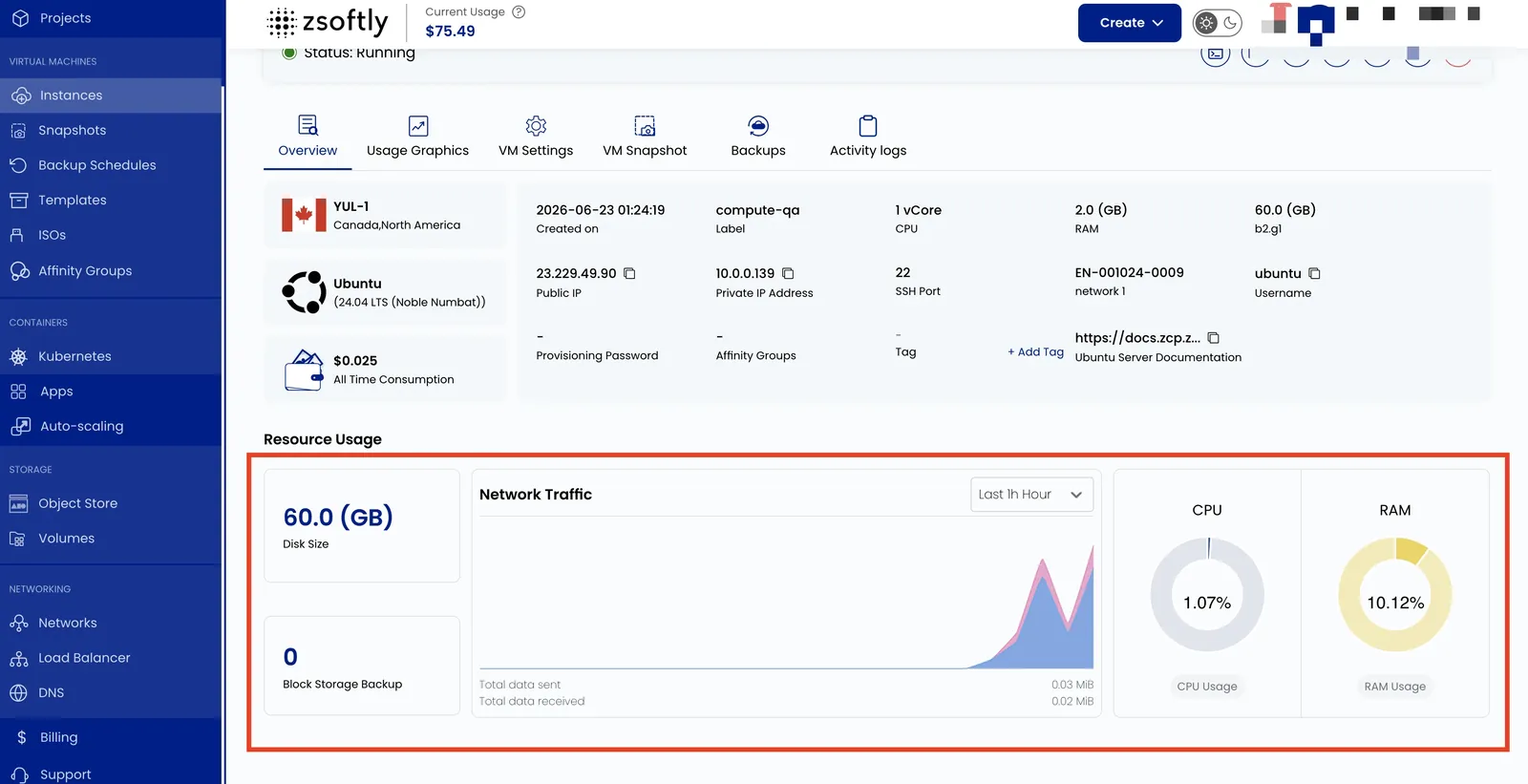
The Instance Overview page provides a detailed summary and management options for your VM. It includes instance status, location, operating system, performance metrics, and quick actions.
Open Virtual Machines → Instances in the portal to see all your VMs, each with its status, region, project, operating system, and IP. Select an instance to open its overview.
Action Buttons
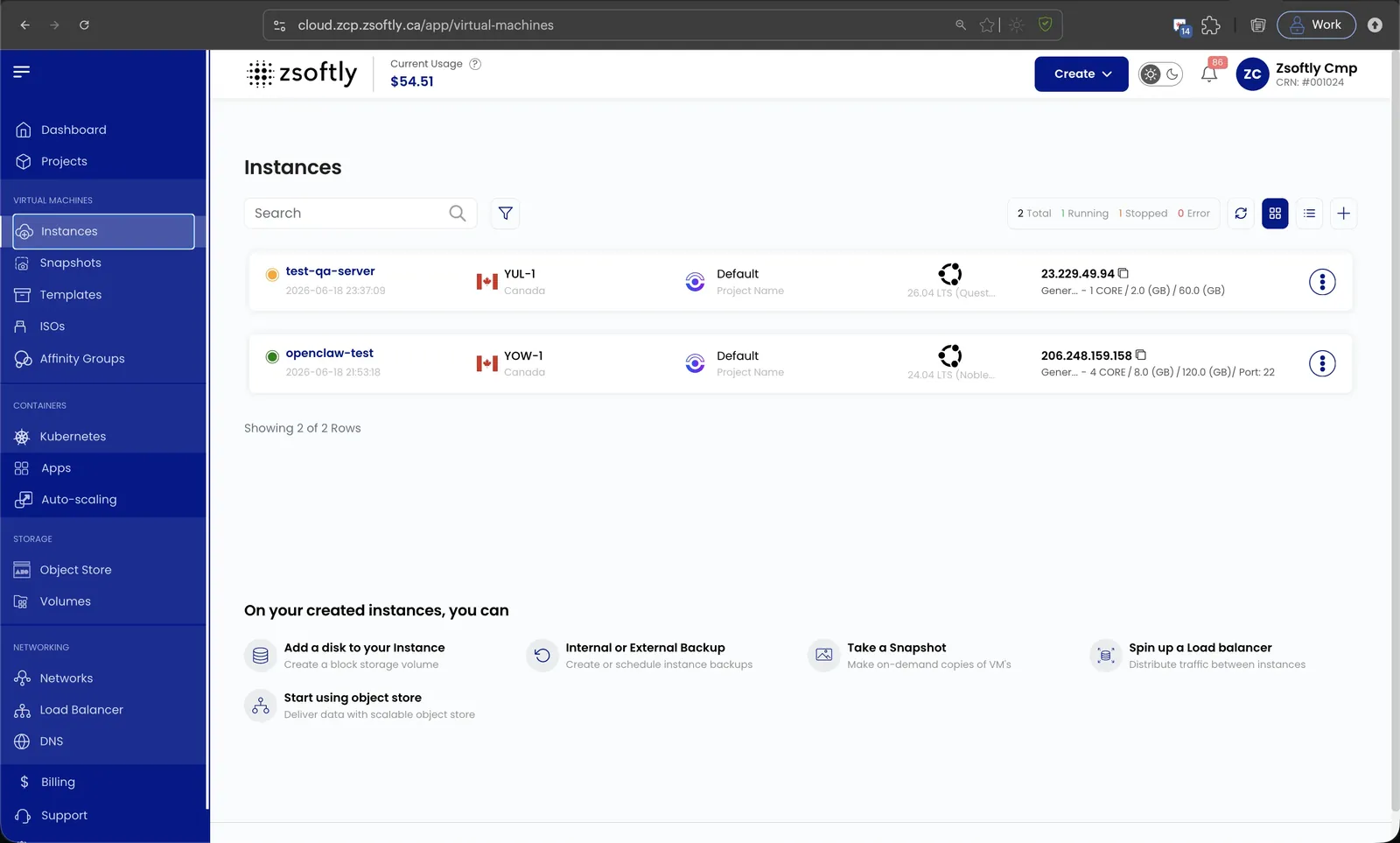
Section titled “Action Buttons”Available from the three-dot menu or overview page:
- Refresh: Refreshes the instance status and page information.
- Console Access: Opens a console interface to interact with the VM directly.
- VM Volume Snapshots: Lists existing snapshots or lets you take a new one.
- Power Off: Shuts down the virtual machine.
- Reboot: Restarts the instance.
- Attach ISO for VM: Mounts an ISO file to the VM.
- Delete: Deletes the instance permanently.
Instance Information
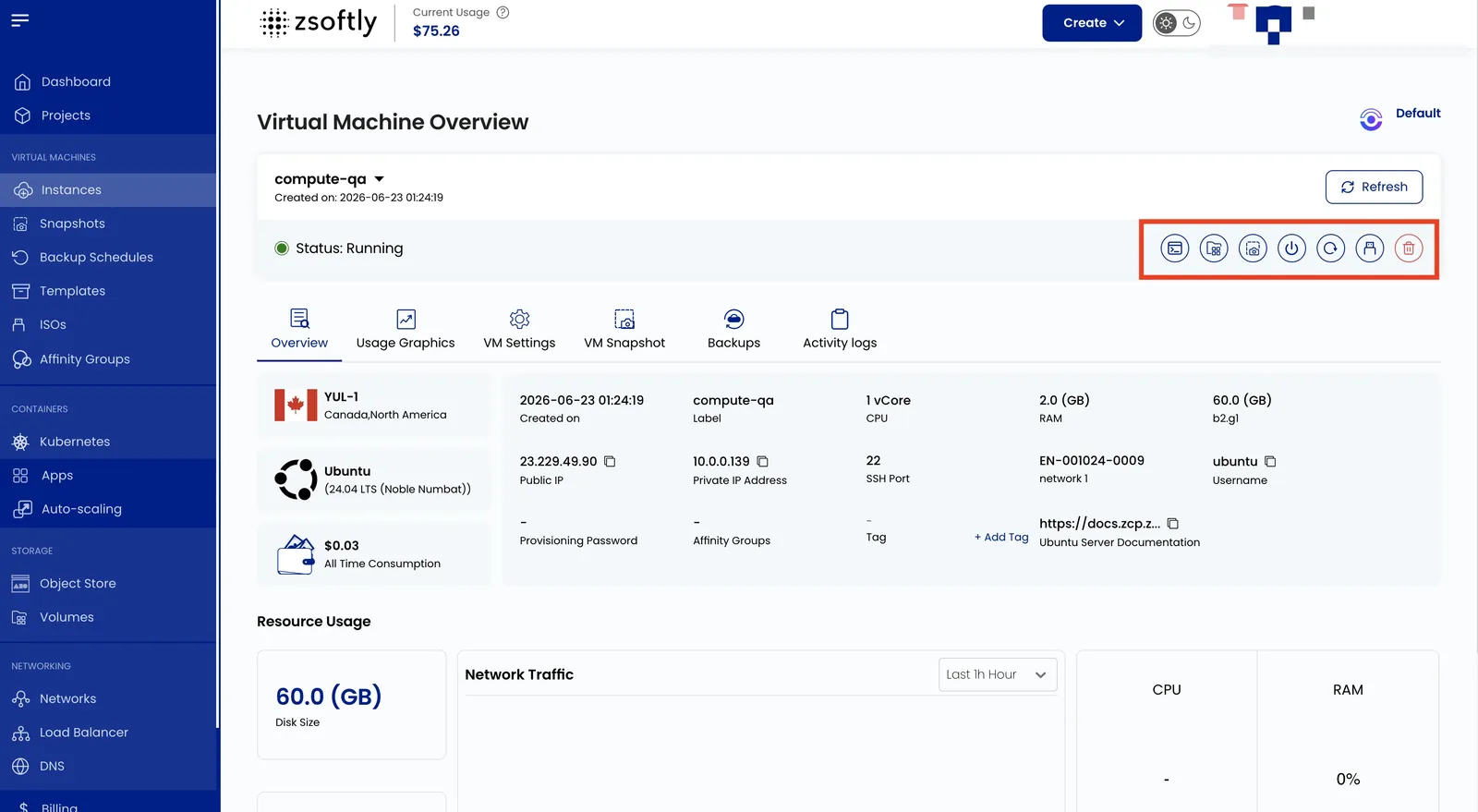
Section titled “Instance Information”- Instance Name
- Created on
- Status (running/stopped)
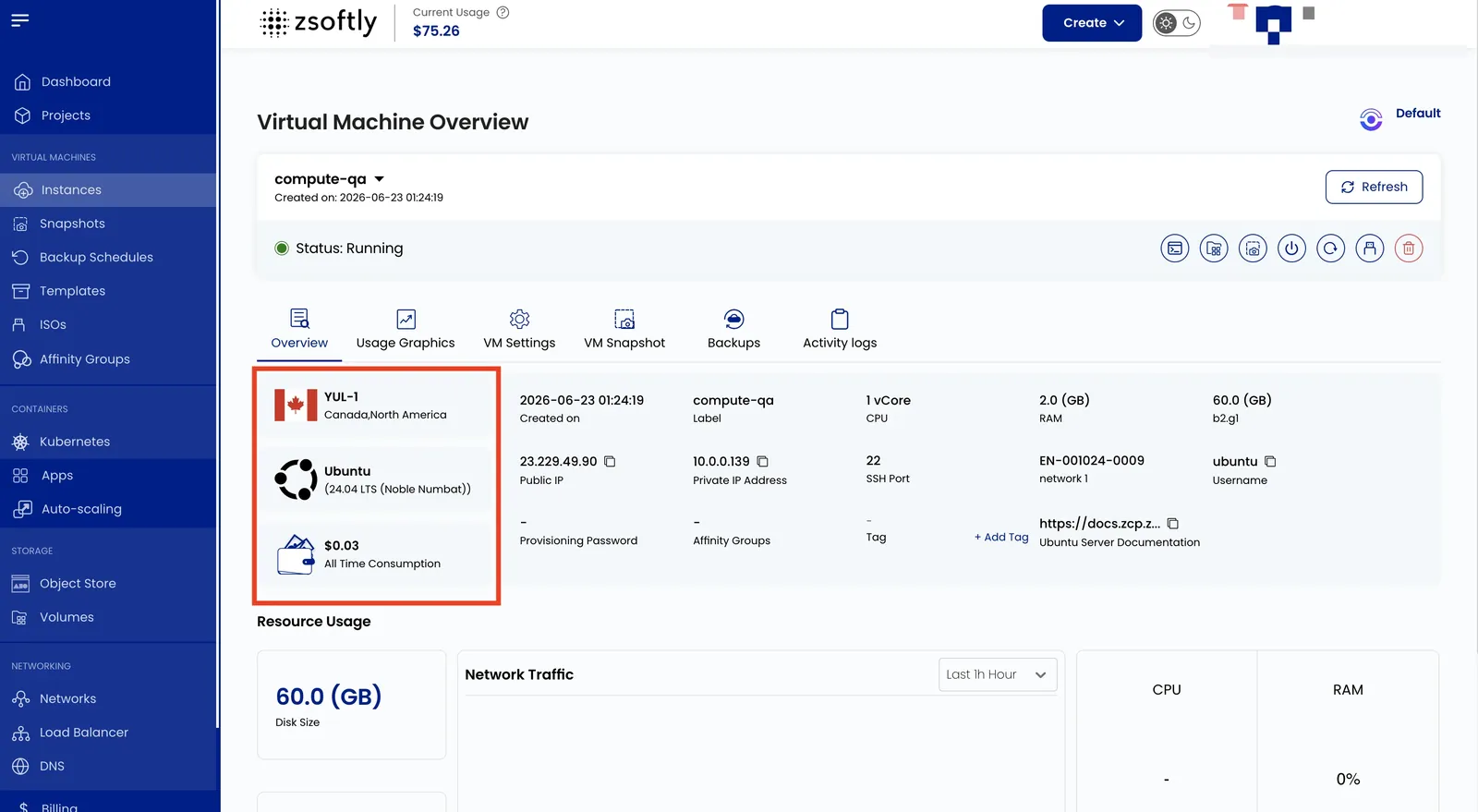
Instance Details
Section titled “Instance Details”- Location
- Operating System
- Cost (all-time)
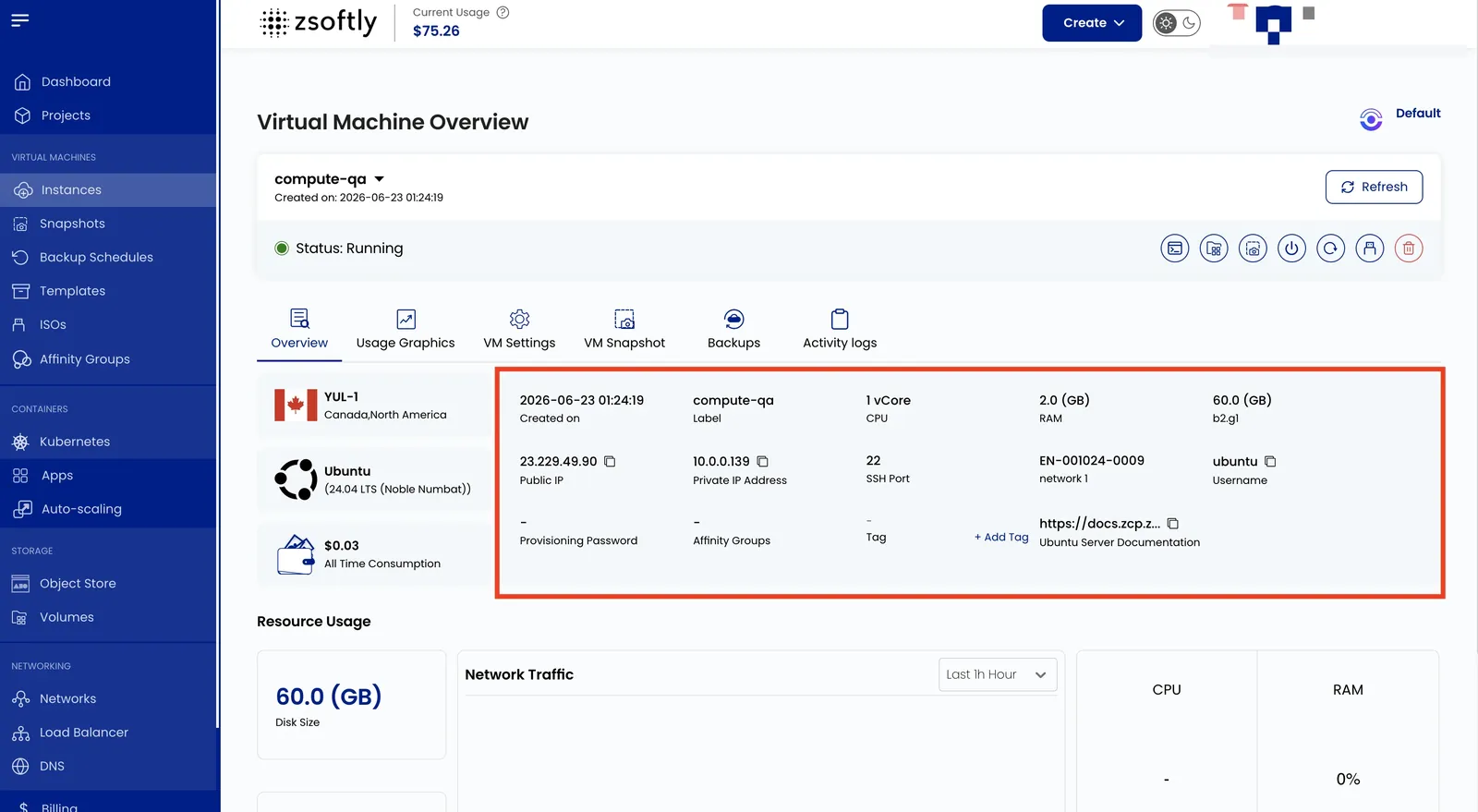
Resource Specifications
Section titled “Resource Specifications”- Label
- CPU (vCPUs)
- RAM
- Disk Size
- Public IP
- Private IP
- Network
- Username
- Password
- Affinity Group
- Tag (add via Add Tag → Key + Value → Submit)
Resource Usage
Section titled “Resource Usage”- Disk Size: capacity usage
- Network Traffic: metrics over a specified period (default: Last 24 Hours)
- CPU Usage: percentage
- RAM Usage: memory consumption