
Create Volume
Block Storage Volumes
Section titled “Block Storage Volumes”Block storage volumes add persistent storage to virtual machines. They provide local NVMe SSD, local SATA SSD, or replicated shared storage, depending on the selected region and plan. This page ends after you submit the volume creation and attachment request.
Create Volumes
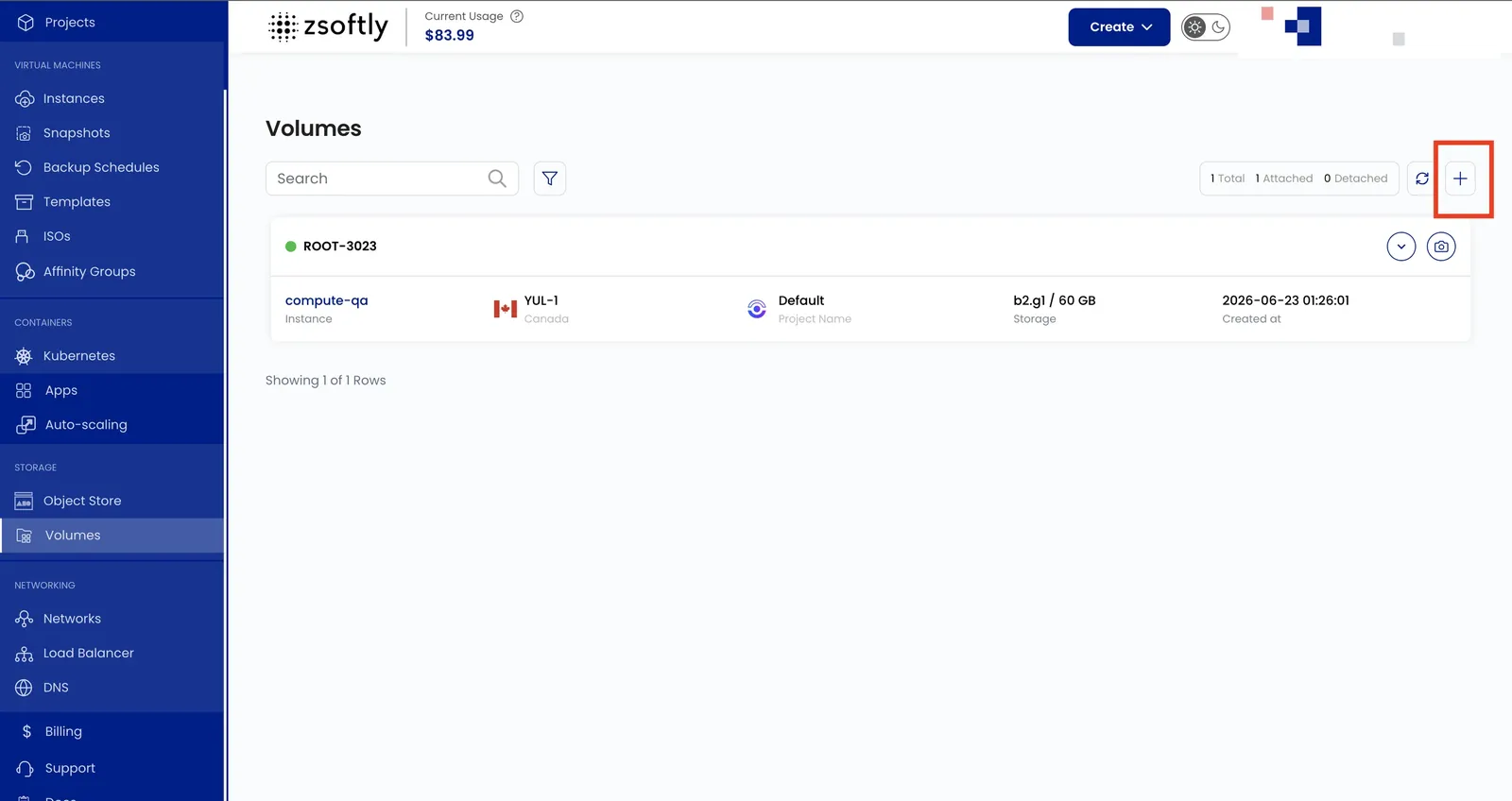
Section titled “Create Volumes”- From the left-hand menu, click Volumes.
- Click the + icon.
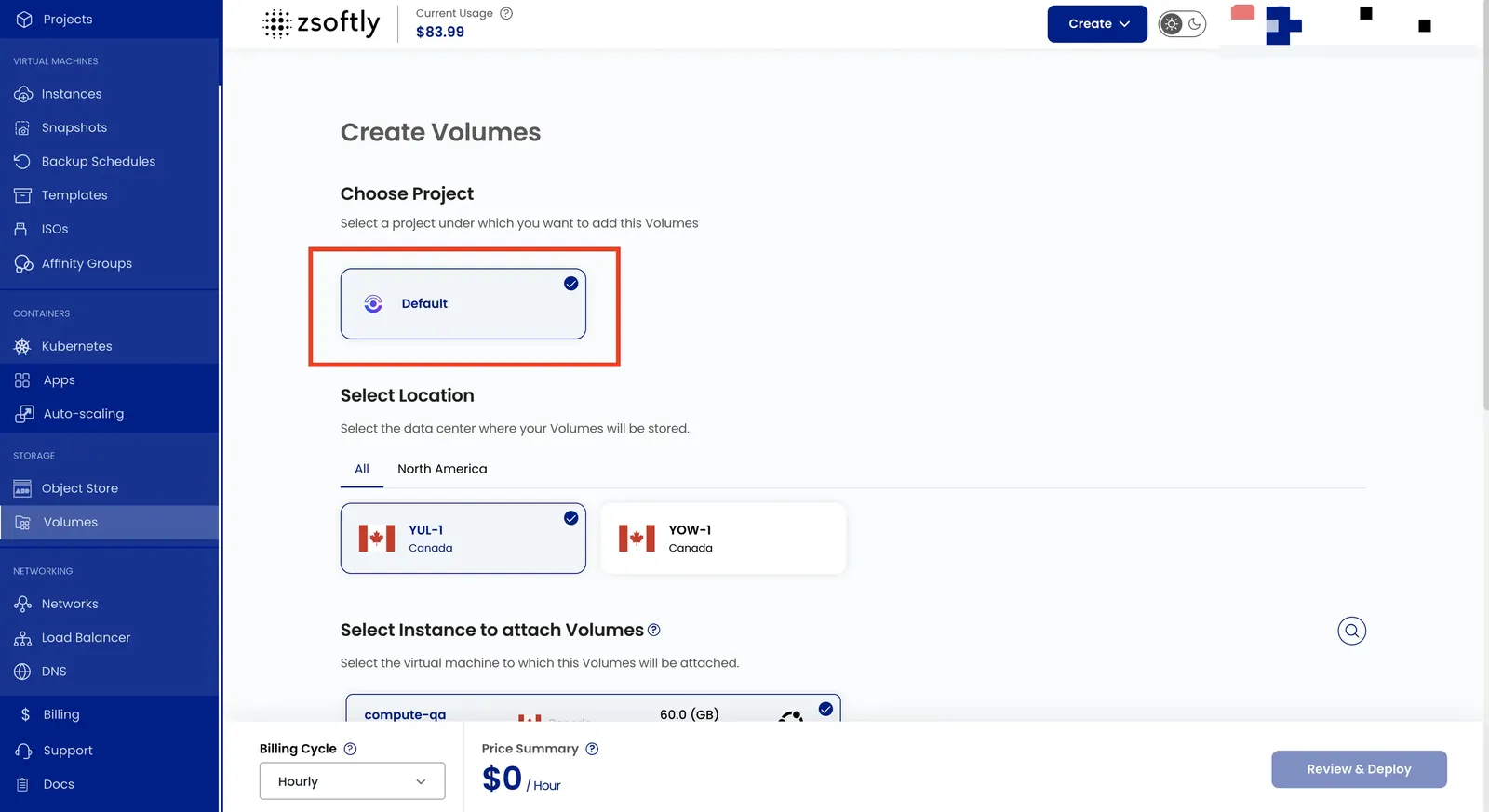
Choose Project
Section titled “Choose Project”Under Choose Project, assign the volume to a project.
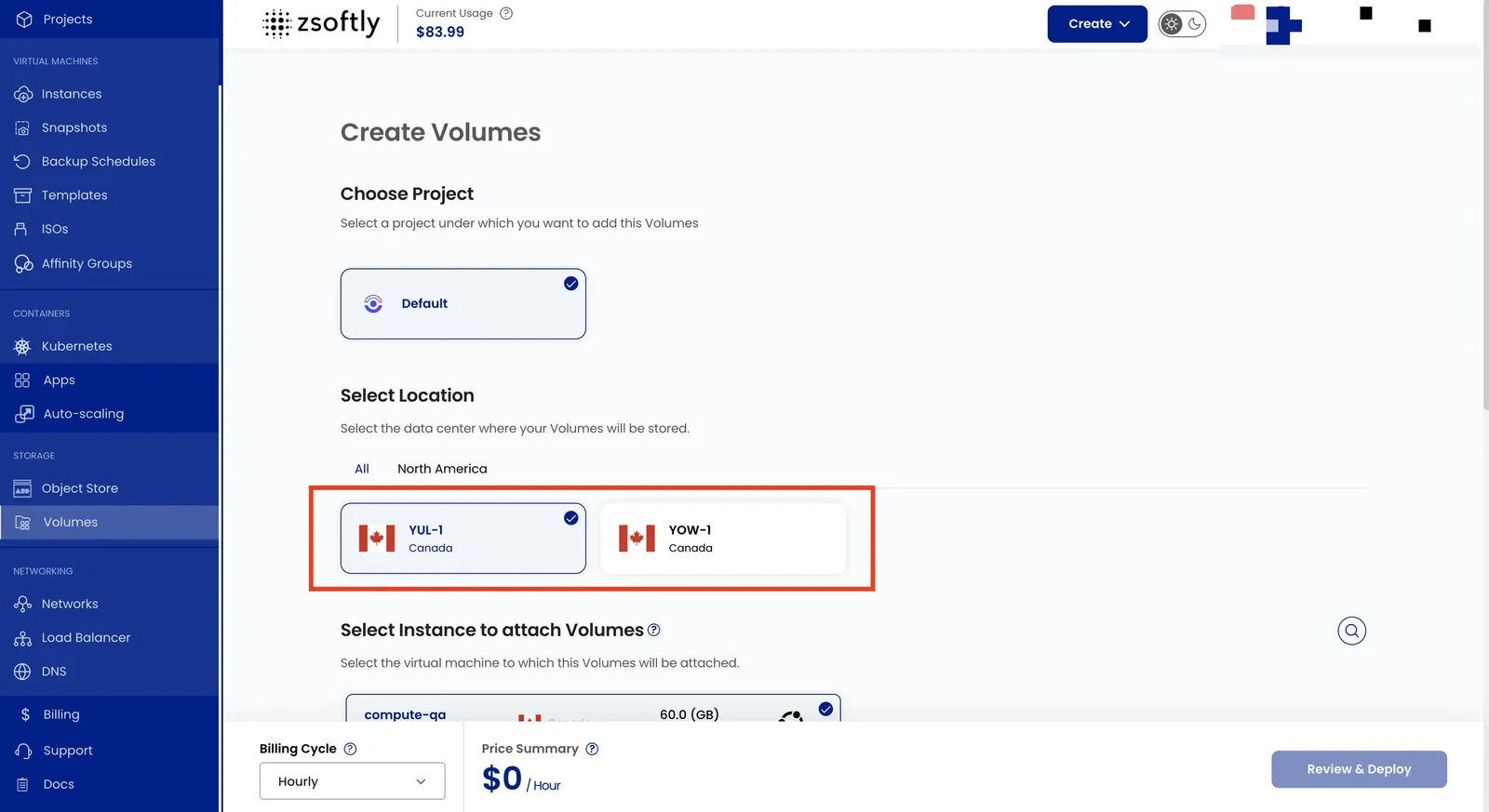
Select Location
Section titled “Select Location”Under Select Location, choose the data center location.
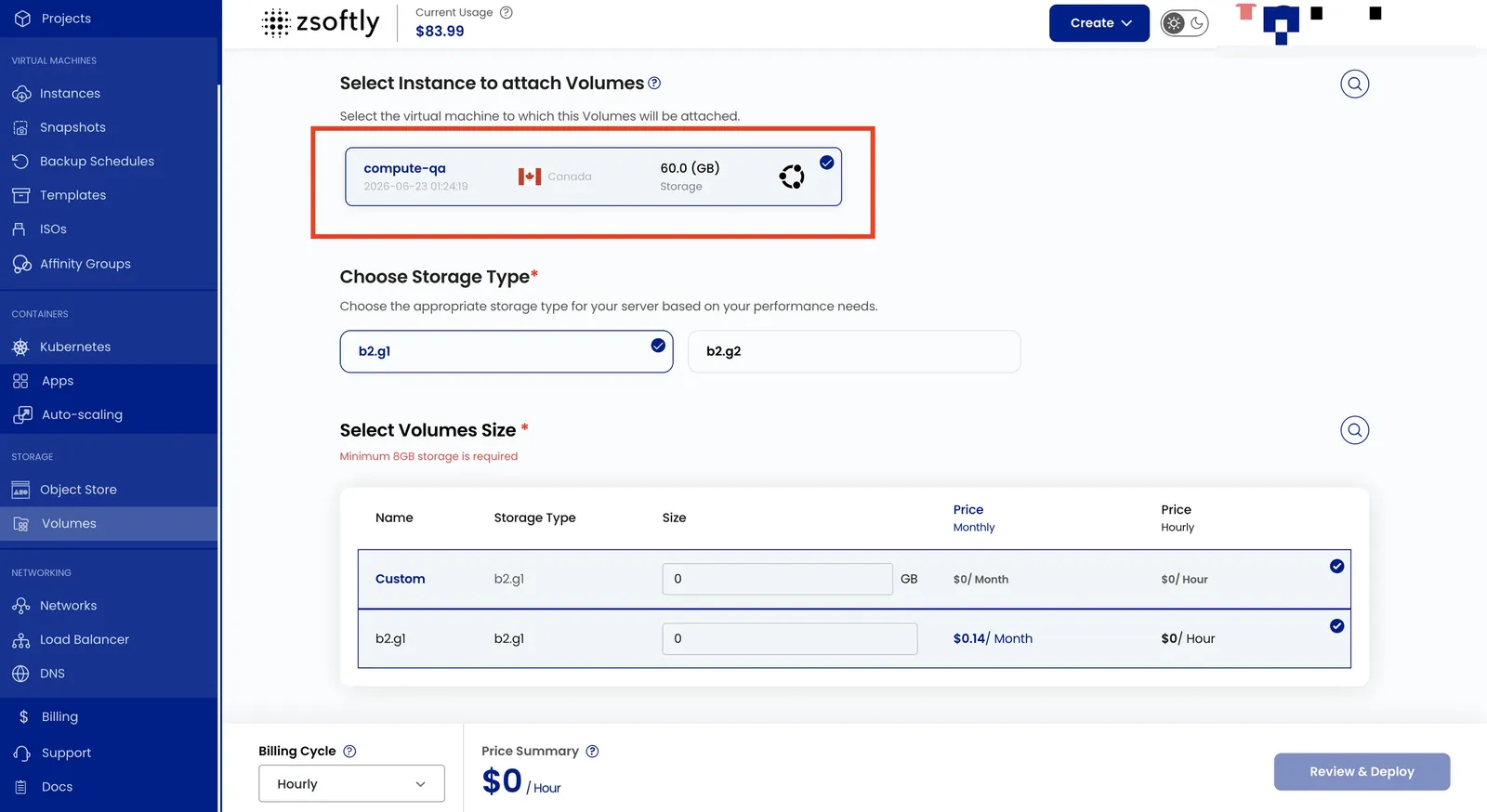
Select Instance to attach Volumes
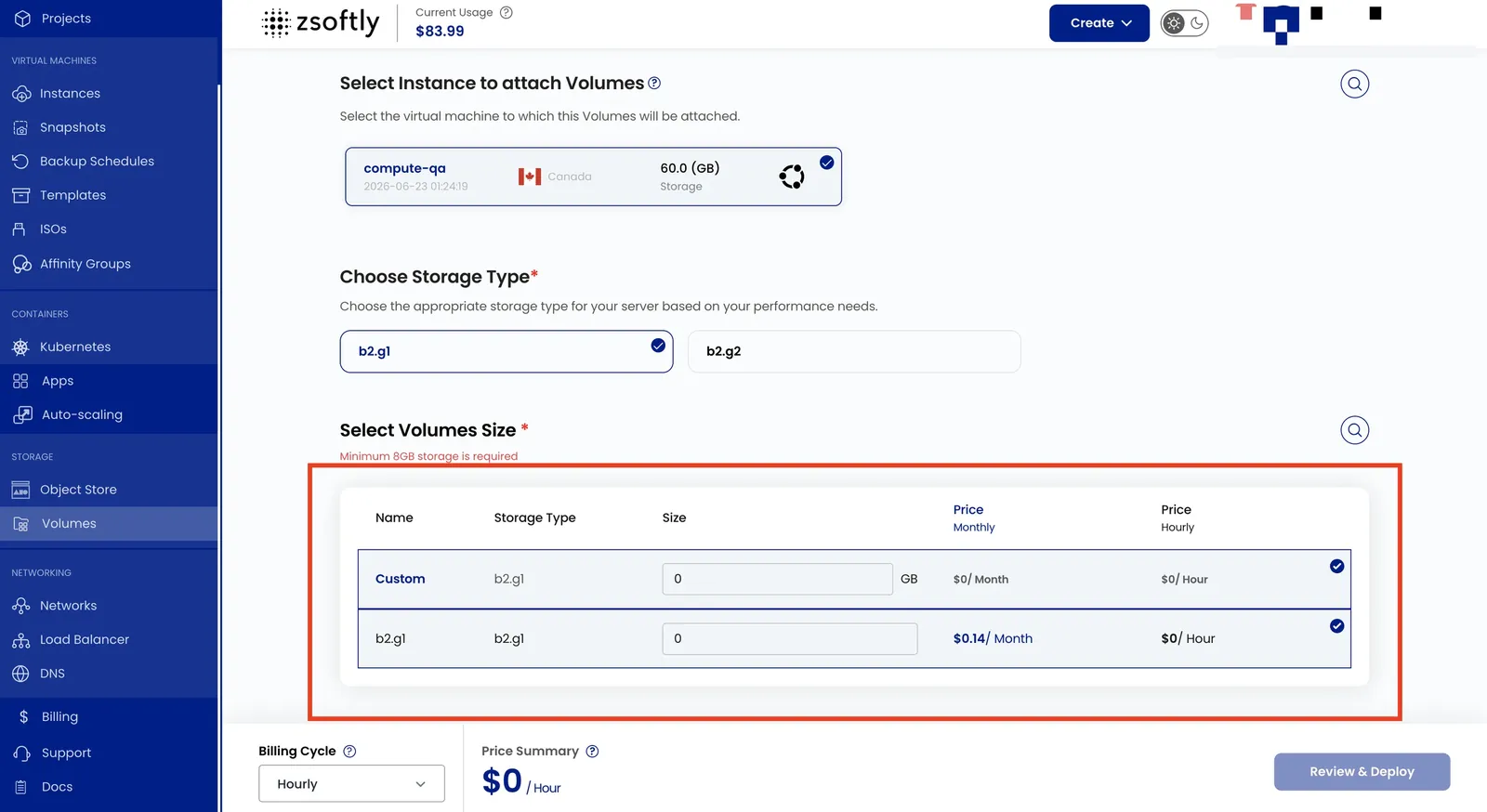
Section titled “Select Instance to attach Volumes”Under Select Instance to attach Volumes, choose the VM instance.
Choose Storage Type and Select Volumes Size
Section titled “Choose Storage Type and Select Volumes Size”Under Choose Storage Type, select a storage type. Under Select Volumes Size, select the volume size. Custom volumes are available.
The published wizard screenshot shows the text Minimum 8GB storage is required. This screenshot is
for reference only. Use the current value shown for the selected storage plan in the portal.
Choose Name
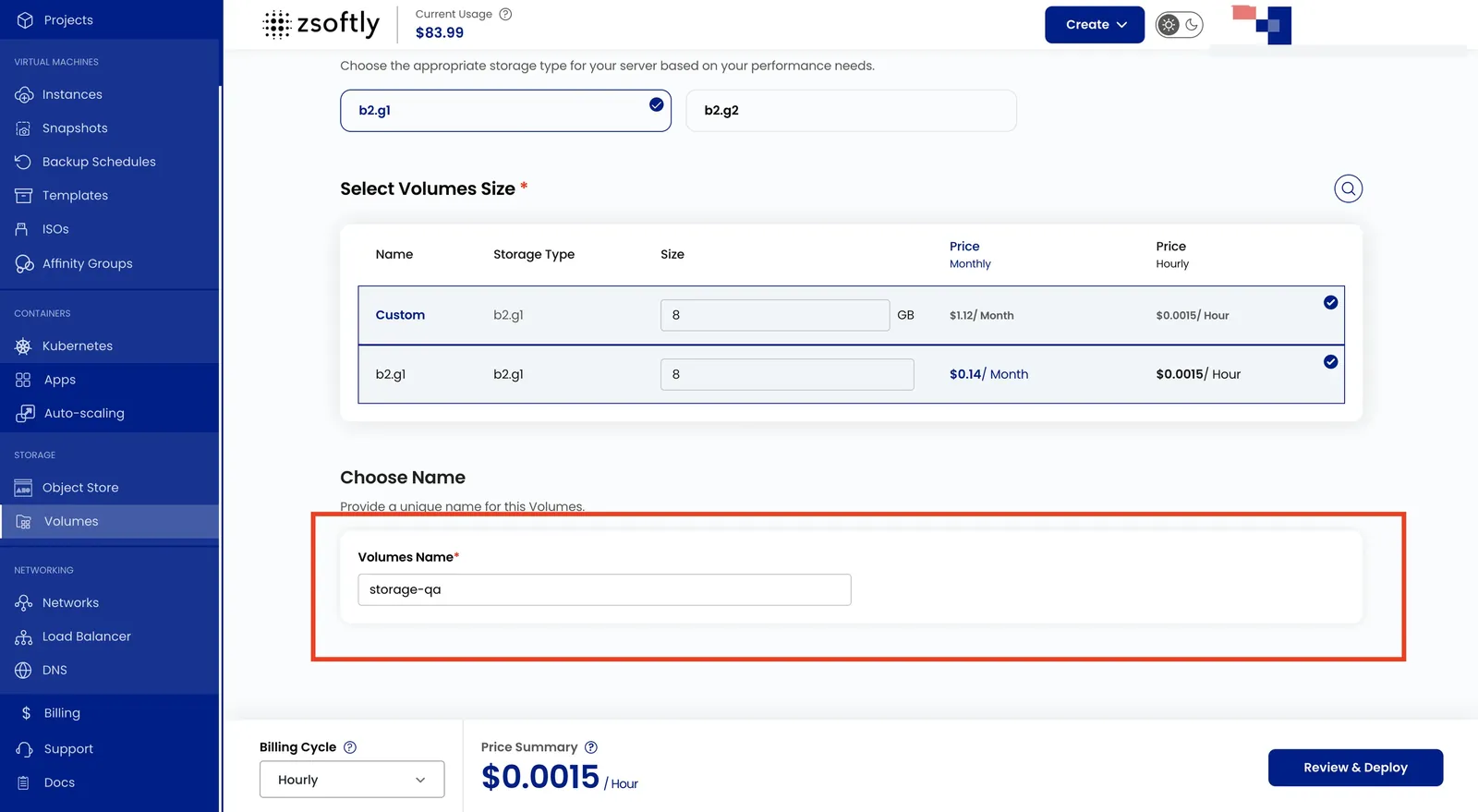
Section titled “Choose Name”Under Choose Name, enter a unique Volumes Name.
Create
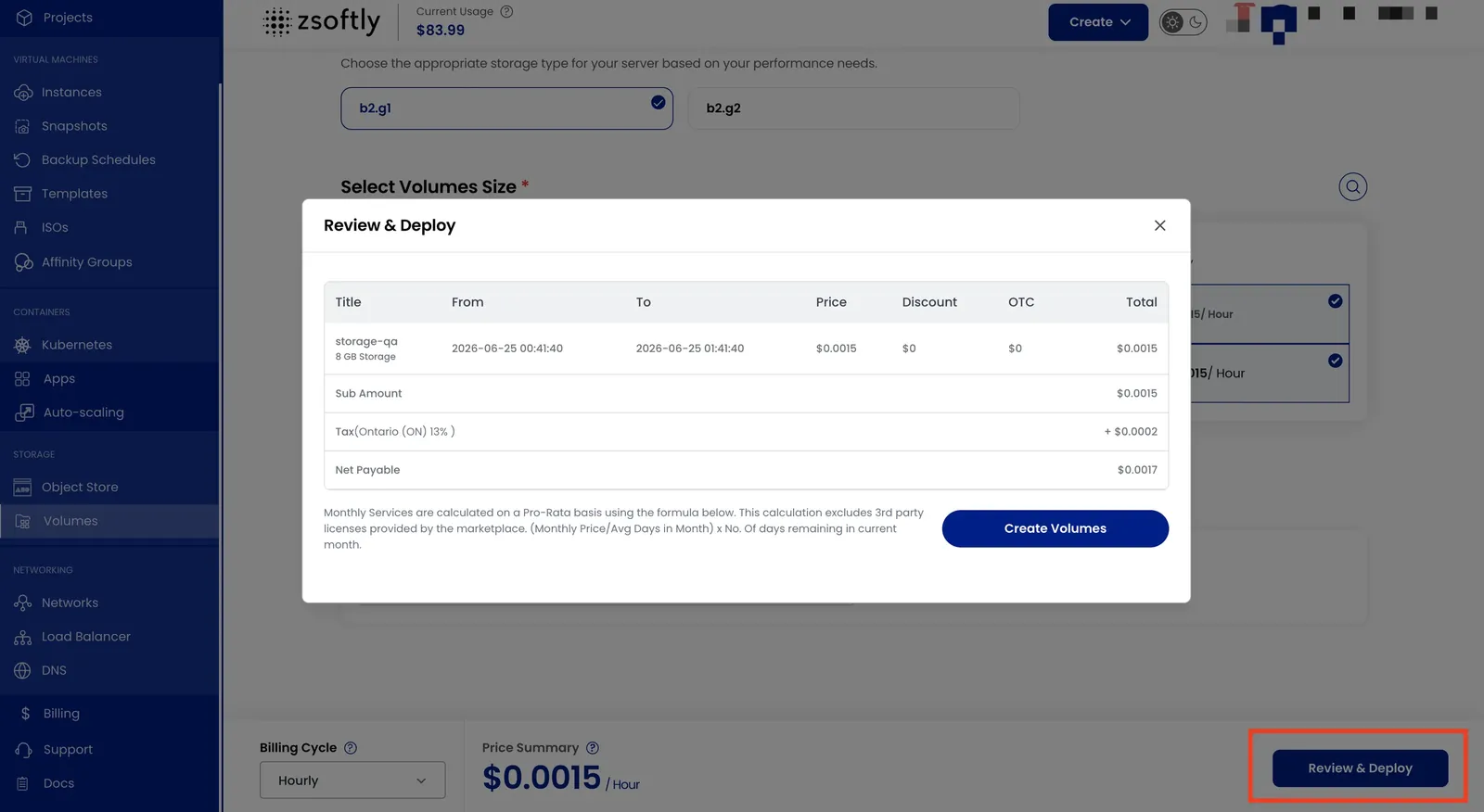
Section titled “Create”Submit the volume creation and attachment request for the target VM.
- Billing Cycle: Hourly, Monthly, or Yearly.
- Click Review & Deploy, review the summary, then click Create Volumes.
The public documentation ends after you submit the volume creation and attachment request. Do not format a disk based only on a transient device name or a manual selection. Ask Support whether the portal volume can be mapped to the guest device and whether a tested initialization and mount procedure is available. If an error appears, include the project, location, and exact error. In all cases, include non-sensitive resource details.
See also: Storage Types and Resilience, Volume Snapshots, VM Snapshots