
Account Signup
ZSoftly Public Cloud Account Setup Guide
Section titled “ZSoftly Public Cloud Account Setup Guide”This guide provides a step-by-step tutorial to help you create a ZSoftly Public Cloud account, set up billing, and verify your account.
Account and Project Structure
Section titled “Account and Project Structure”One email address, one account. Each email address maps to exactly one ZCP account. You cannot register a second account with an address already in use.
Use Projects for environment isolation. Most teams need one account. Create separate
Projects inside it for dev, stg, and prd. Each Project gets its own resources, quotas, and
team membership. Resources in different Projects do not share networks or storage. See
Projects for details.
Use separate accounts for hard isolation. Some organizations need a complete boundary between environments or business units: separate billing, separate IAM, and no shared resources. Create one account per boundary. Because each account requires a unique email address, use plus-addressing if your mail provider supports it:
| Account | |
|---|---|
| Account 1 | company+1@example.com |
| Account 2 | company+2@example.com |
| Account 3 | company+3@example.com |
All three addresses deliver to the same inbox. Each maps to a fully independent ZCP account with its own billing and IAM.
Register Account
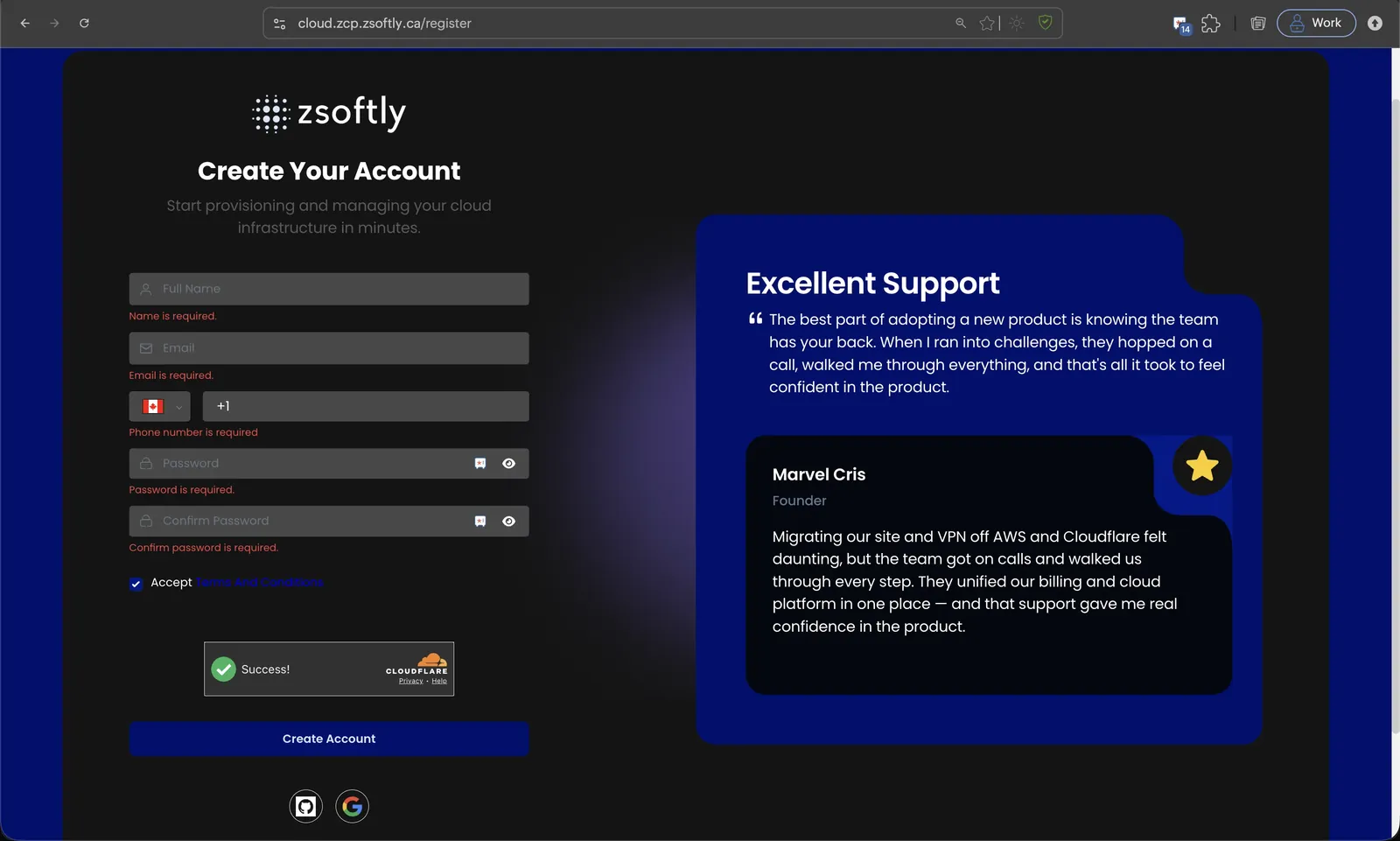
Section titled “Register Account”- Go to the registration page at cloud.zcp.zsoftly.ca/register.
- Enter your name, email address, phone number, and a password, then accept the Terms and Conditions. You can also sign up with GitHub or Google.
- Click Create Account to proceed to the next step.
Verify Your Email
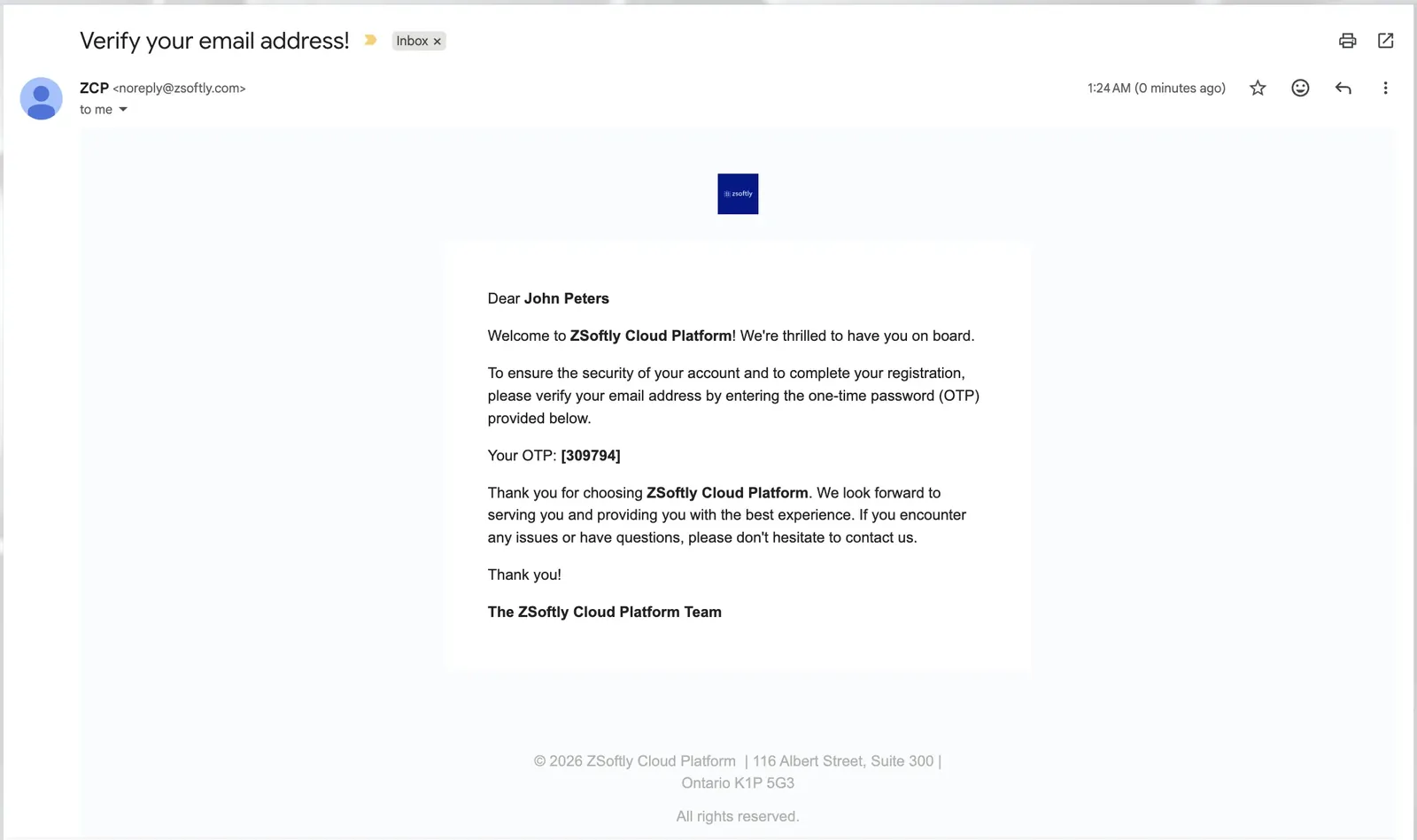
Section titled “Verify Your Email”- Check your email inbox for a verification email from ZSoftly Public Cloud containing a One-Time Password (OTP).
- Enter the OTP in the provided field on the website.
- Click Verify to confirm and proceed to the billing setup.
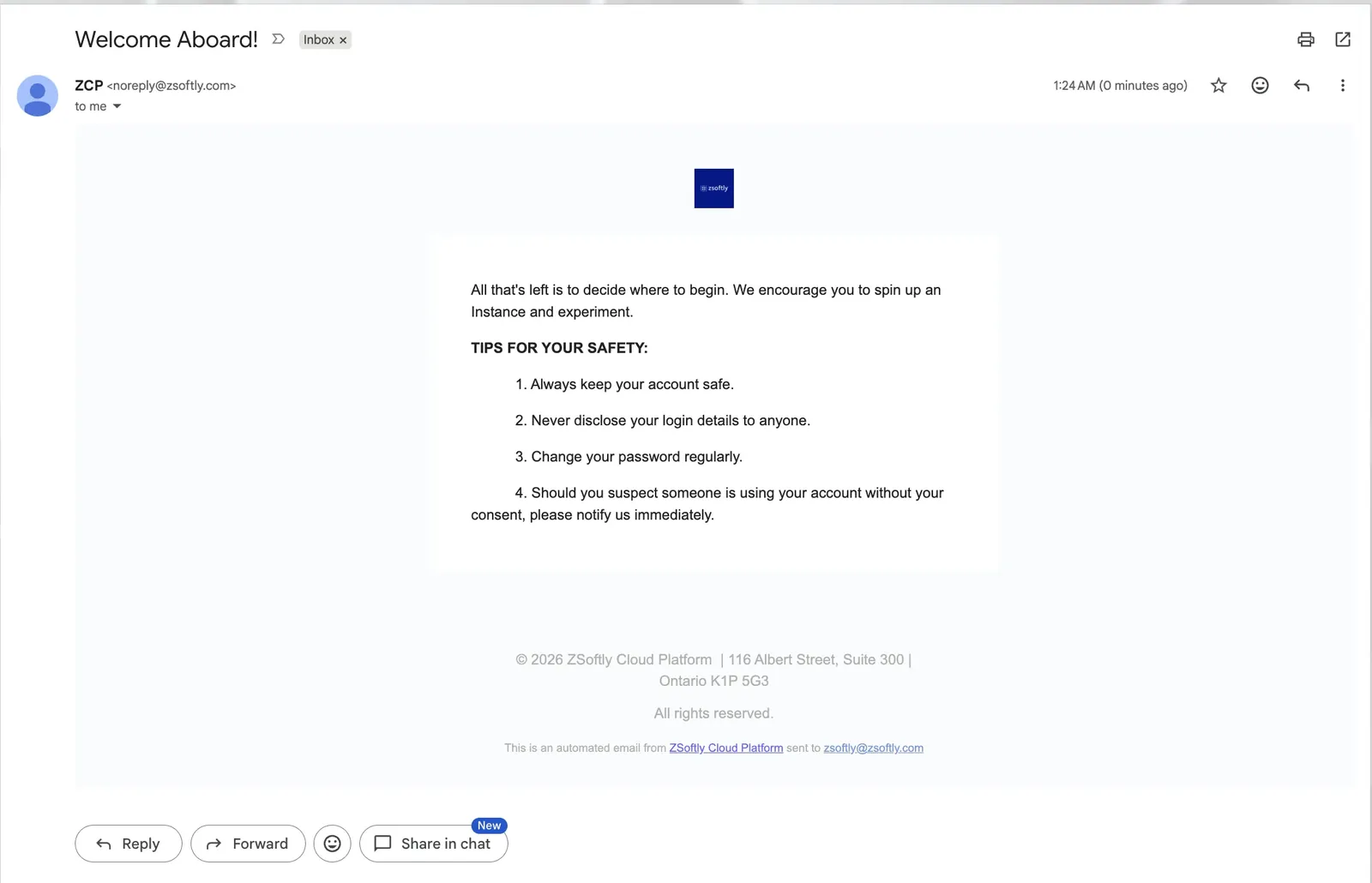
Once verified, ZSoftly Public Cloud sends a welcome email confirming your account is ready.
Set Up Billing Method
Section titled “Set Up Billing Method”-
After verifying your account, you’ll be prompted to set up your billing information.
-
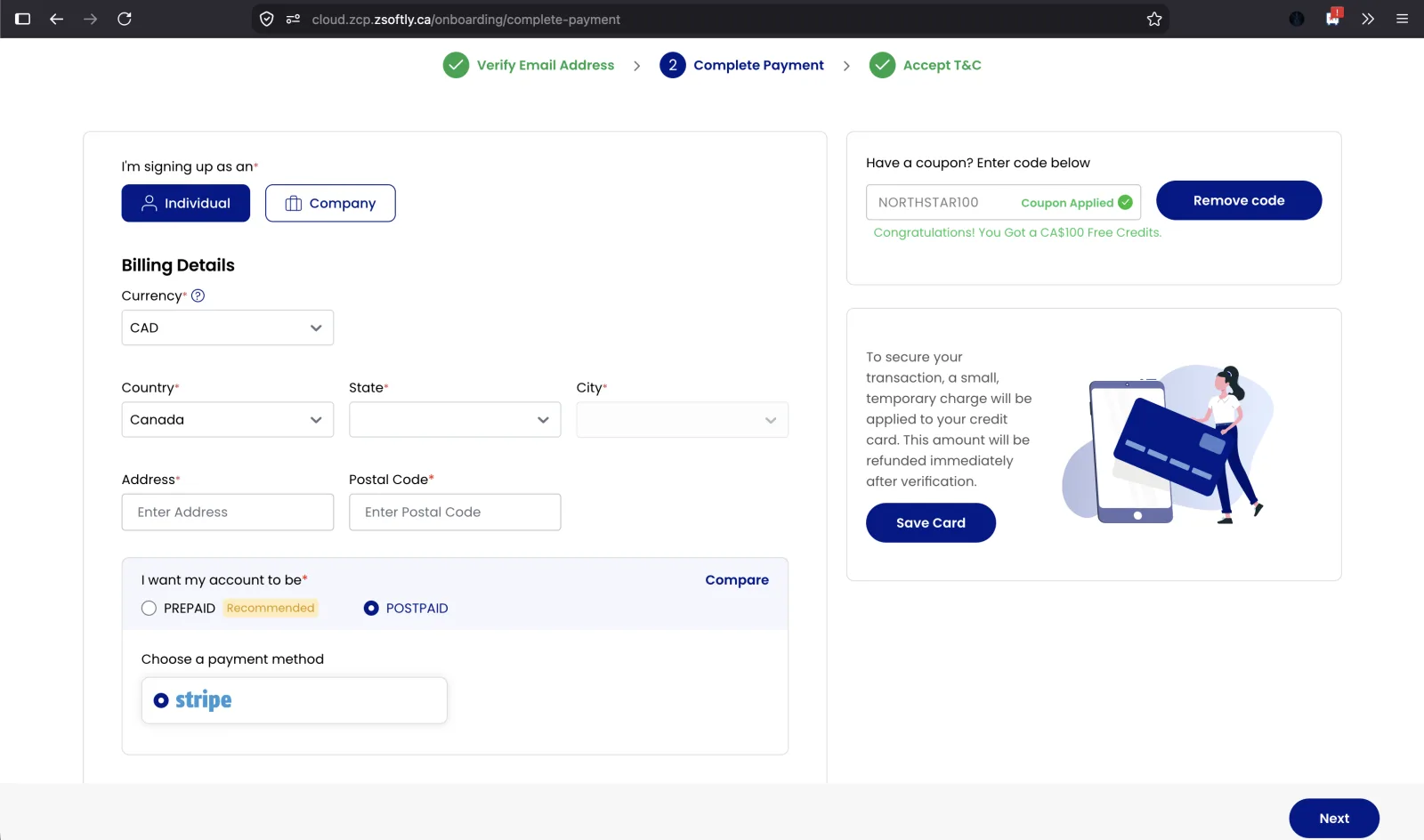
Choose an account type:
- Individual: For personal use. If you select Postpaid, your initial billing threshold is CAD 100. Enter details like your address.
- Company: For organizational use. If you select Postpaid, your initial billing threshold is CAD 300. Provide details such as your company name, website, and address.
-
If you have a coupon, redeem it at checkout to receive a discount or promotional offer.
Launch Promotional Credit
Section titled “Launch Promotional Credit”Eligible new accounts receive CA$100 in launch promotional credit automatically at sign-up, valid for 30 days. Launch promotional credit is separate from your billing option, account credit, and Postpaid billing threshold.
After you spend CA$200 on eligible compute plans, you can claim an additional CA$200 in launch promotional credit: request it from your account email address through our contact page, including your account number and referencing “$200 Credit Request”. We’ll apply the additional launch promotional credit to your account. It is valid for 60 days, bringing your total launch promotional credit to up to CA$300.
The additional CA$200 in launch promotional credit applies to eligible Small through XLarge compute plans. The offer is available until December 31, 2026.
Payment Methods
Section titled “Payment Methods”ZSoftly Public Cloud accepts:
- Card: Visa, Mastercard, and American Express, processed securely through Stripe.
- PayPal: pay from your PayPal balance or a linked account.
- Bank Transfer / Wire: for manual payments, contact our Sales team and they will arrange the transfer and apply the funds to your account as account credit.
Card and PayPal are self-serve in the portal. Bank transfer and wire are arranged with Sales.
Choose a Payment Plan
Section titled “Choose a Payment Plan”Prepaid
Section titled “Prepaid”- Prepaid requires account credit before you provision a new service. Usage reduces your account credit, and you cannot create a new service without enough credit.
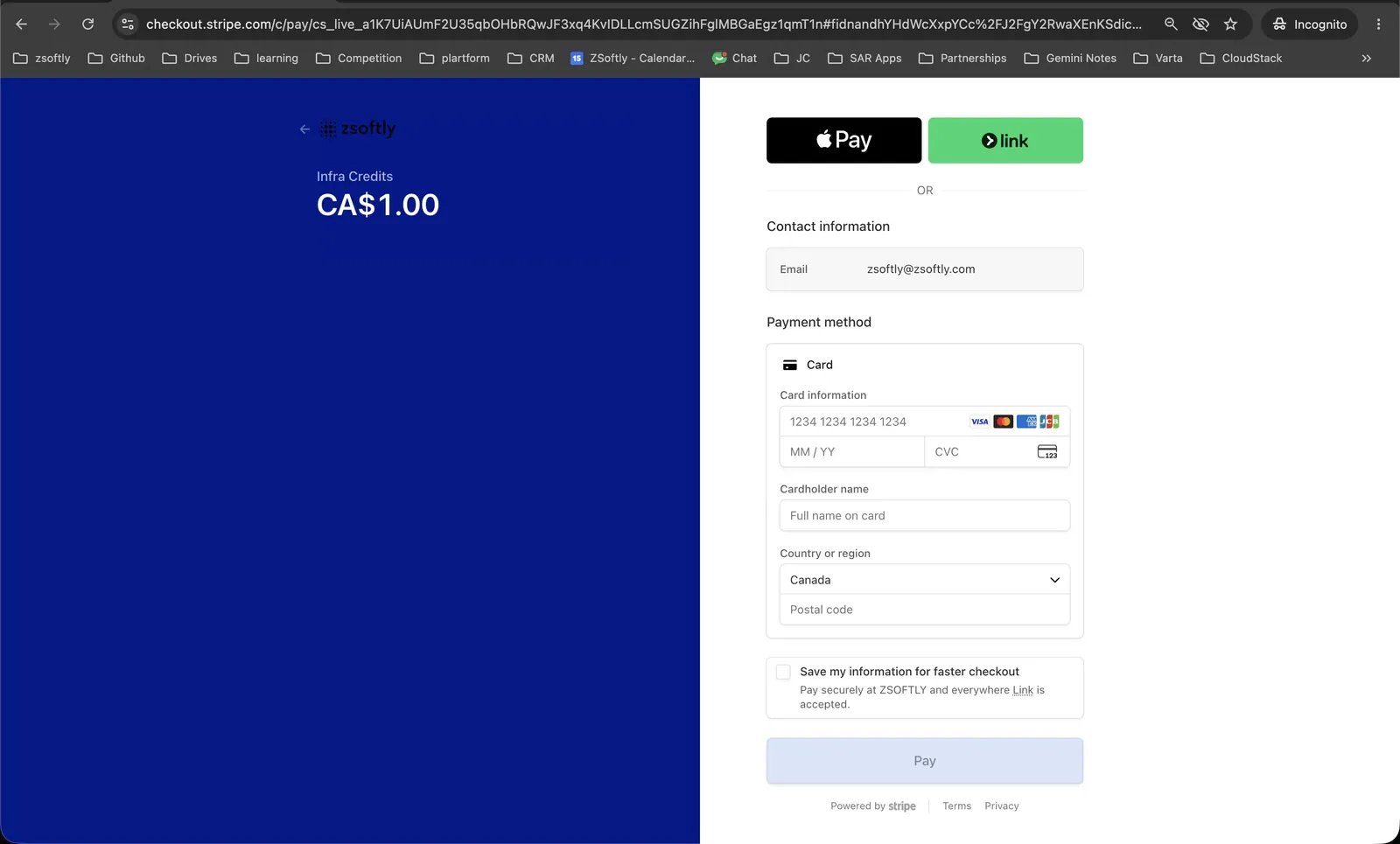
- To activate Prepaid, add account credit. A minimum CA$1.00 payment verifies and validates your account. ZCP adds that payment to your account credit, so you can spend the full amount.
- Active usage or a renewal can still leave your account credit negative. Your next top-up clears a negative balance before adding usable credit.
- Pay with Stripe or PayPal and click Proceed to complete a top-up, or contact Sales to pay by bank transfer or wire.
- Choose Prepaid for a quarterly or longer billing cycle.
Postpaid
Section titled “Postpaid”- Postpaid lets you use services first and pay invoices later. It applies to hourly and monthly service cycles.
- To activate Postpaid, save a credit card through Stripe. Postpaid accepts only that Stripe-saved credit card. PayPal, bank transfers, wires, and manual payments are not accepted for Postpaid.
- Your initial Postpaid billing threshold is CAD 100 for a personal account and CAD 300 for an organization account. When usage reaches the threshold, ZCP generates an invoice and auto-charges your saved card. A new threshold cycle then begins.
Choose Prepaid or Postpaid during signup. After you create your account, it remains in that billing mode for the life of the account.
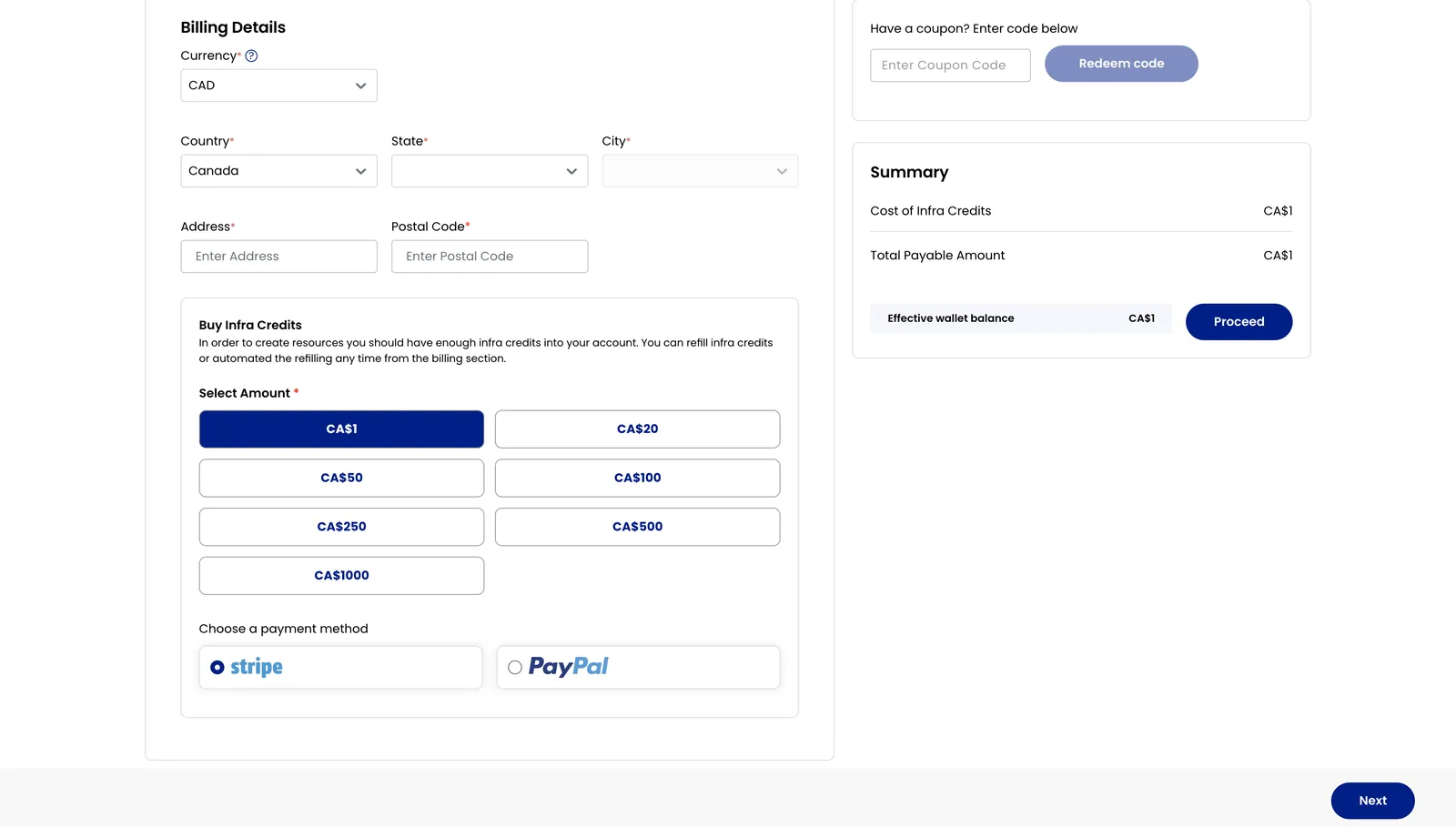
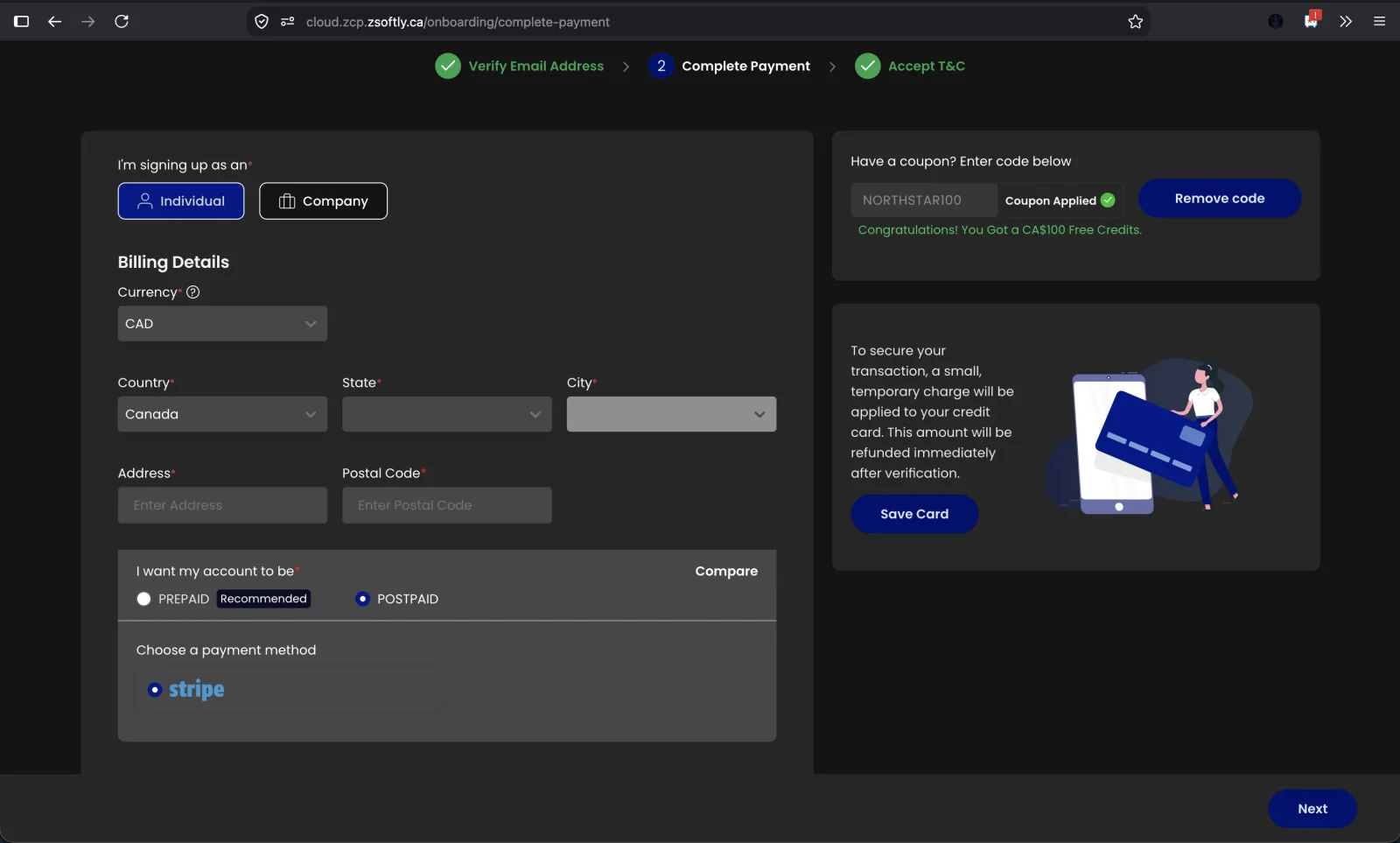
The Postpaid signup step shows the Postpaid option and Stripe as the only payment method. Save your credit card through Stripe to continue.
Final Steps
Section titled “Final Steps”-
Review the Terms & Conditions of the platform carefully.
-
Accept the terms to complete the registration process.
-
Prepaid Users: Your account status will display as active, with the billing option set to Prepaid.
-
Postpaid Users: After verification, your account will display as active with the billing option set to Postpaid.
Sign in to the portal
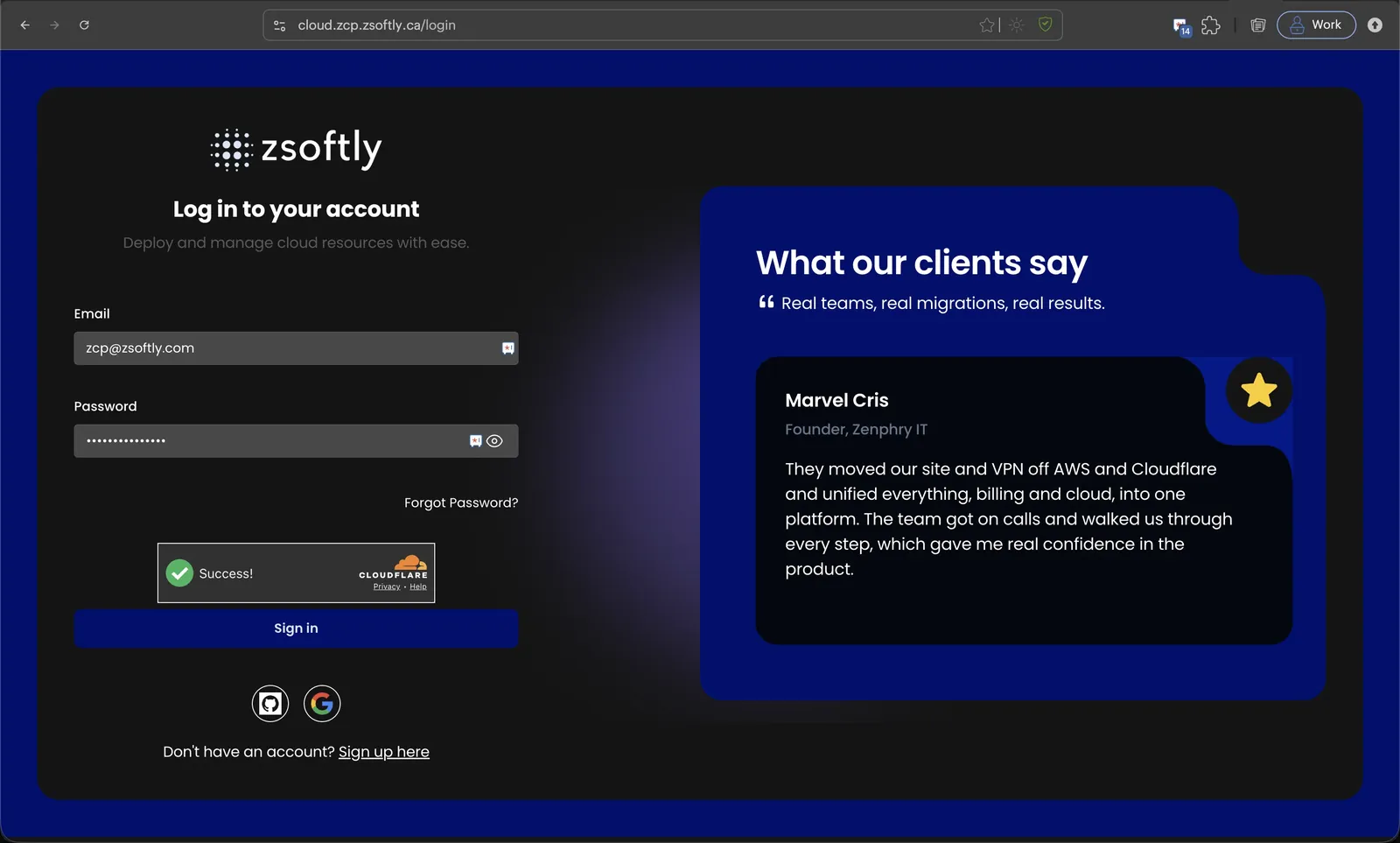
Section titled “Sign in to the portal”Once your account is active, sign in at cloud.zcp.zsoftly.ca/login. Enter your email and password (or use GitHub or Google), pass the verification challenge, and click Sign in.
Reset your password
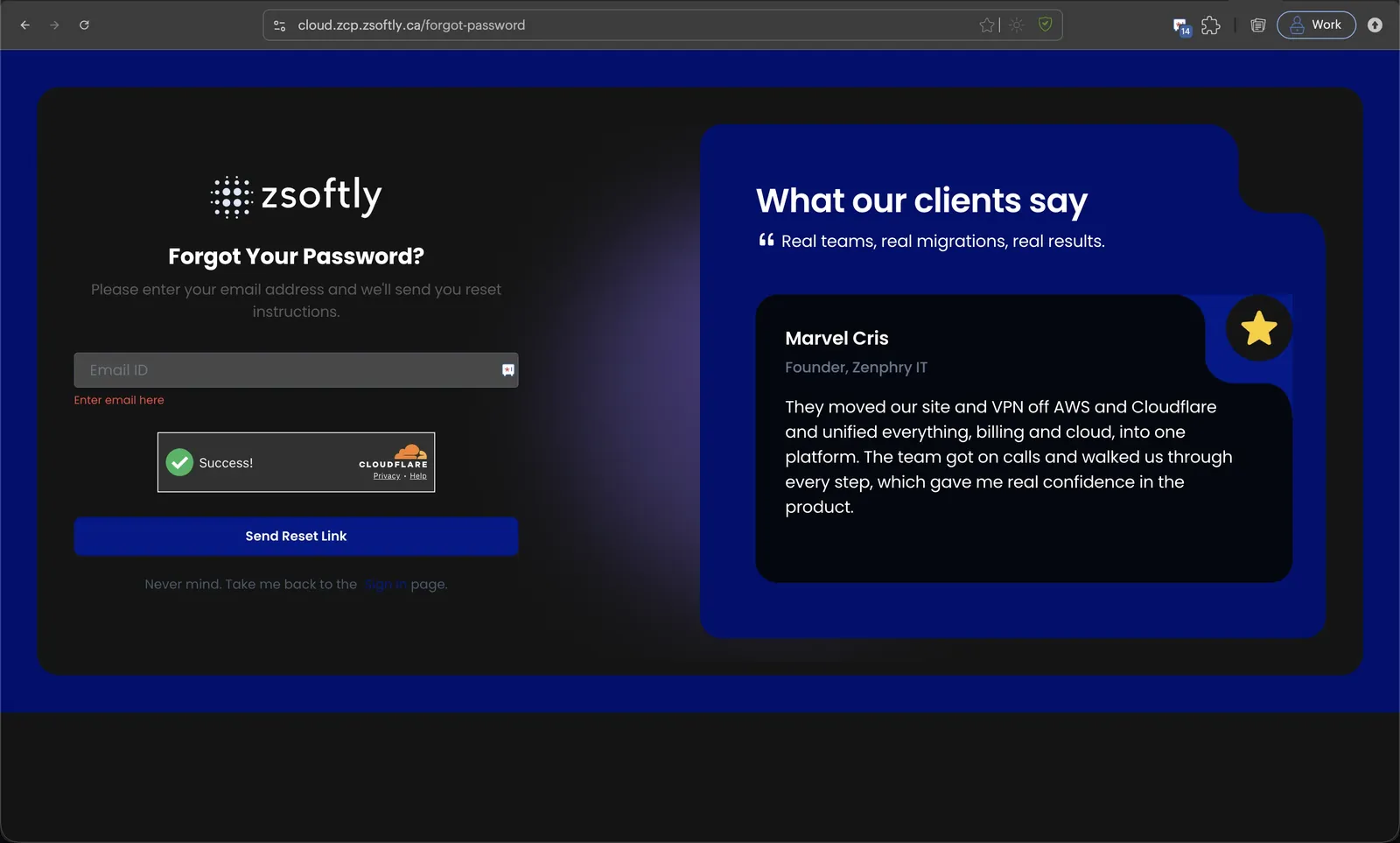
Section titled “Reset your password”If you forget your password, click Forgot Password? on the sign-in page (or go to cloud.zcp.zsoftly.ca/forgot-password). Enter your account email and click Send Reset Link. You’ll receive reset instructions by email.
Sign out
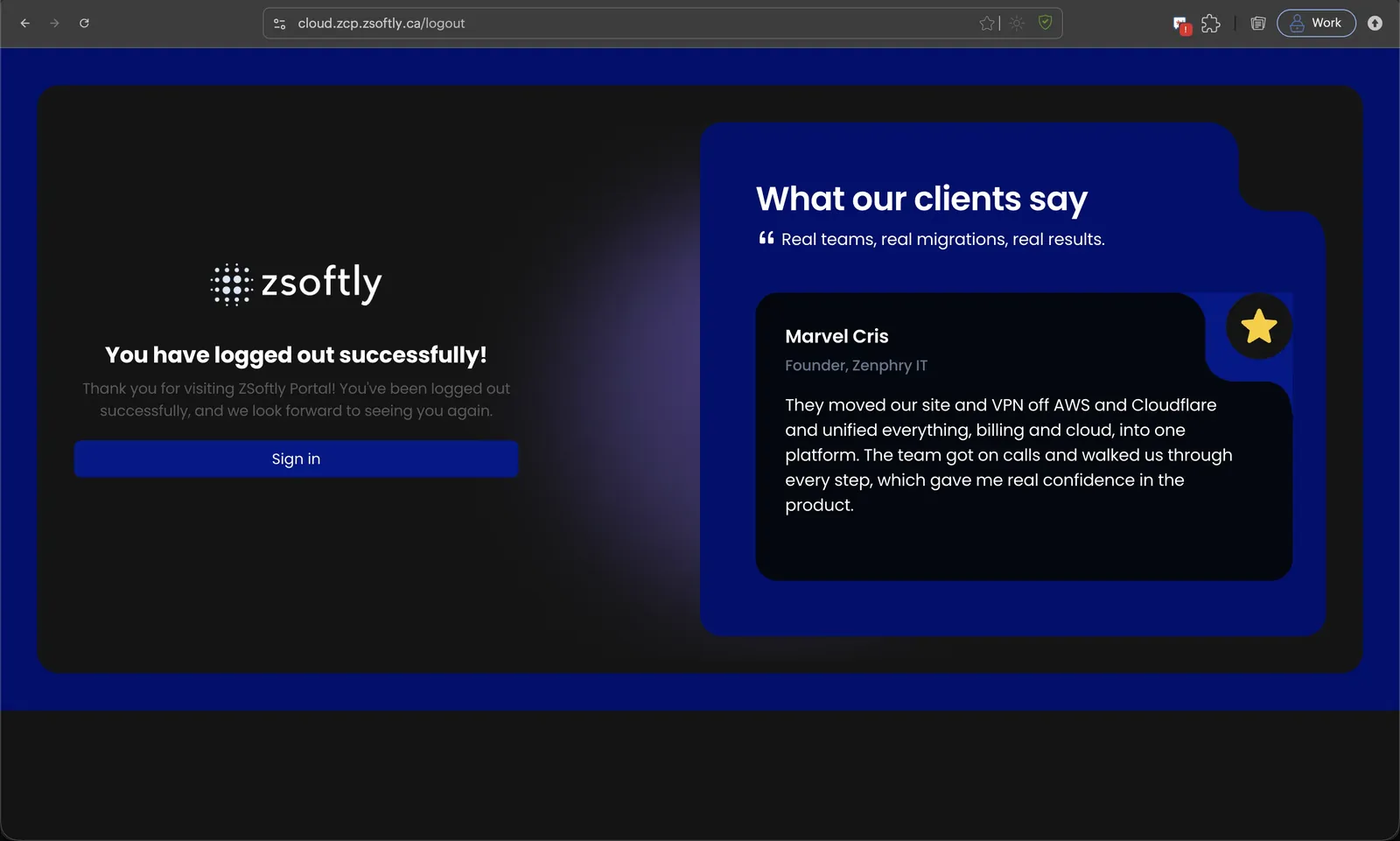
Section titled “Sign out”To end your session, use the account menu and select sign out. The portal confirms you have logged out, and you can sign back in anytime.
Setting up your ZSoftly Public Cloud account is a straightforward process. Register, verify your email, configure billing, and choose a payment plan that best suits your needs. Once completed, you’ll have full access to the ZSoftly Public Cloud dashboard and its features, enabling you to manage your resources efficiently.