Compute Instance
A Compute Instance is a virtual server in the cloud that functions similarly to a physical computer. It has its own CPU, memory, and storage, allowing you to install software, run applications, or host websites. Compute Instances are a fundamental component of ZSoftly Public Cloud, enabling you to launch and scale servers as needed.
Creating a Compute Instance
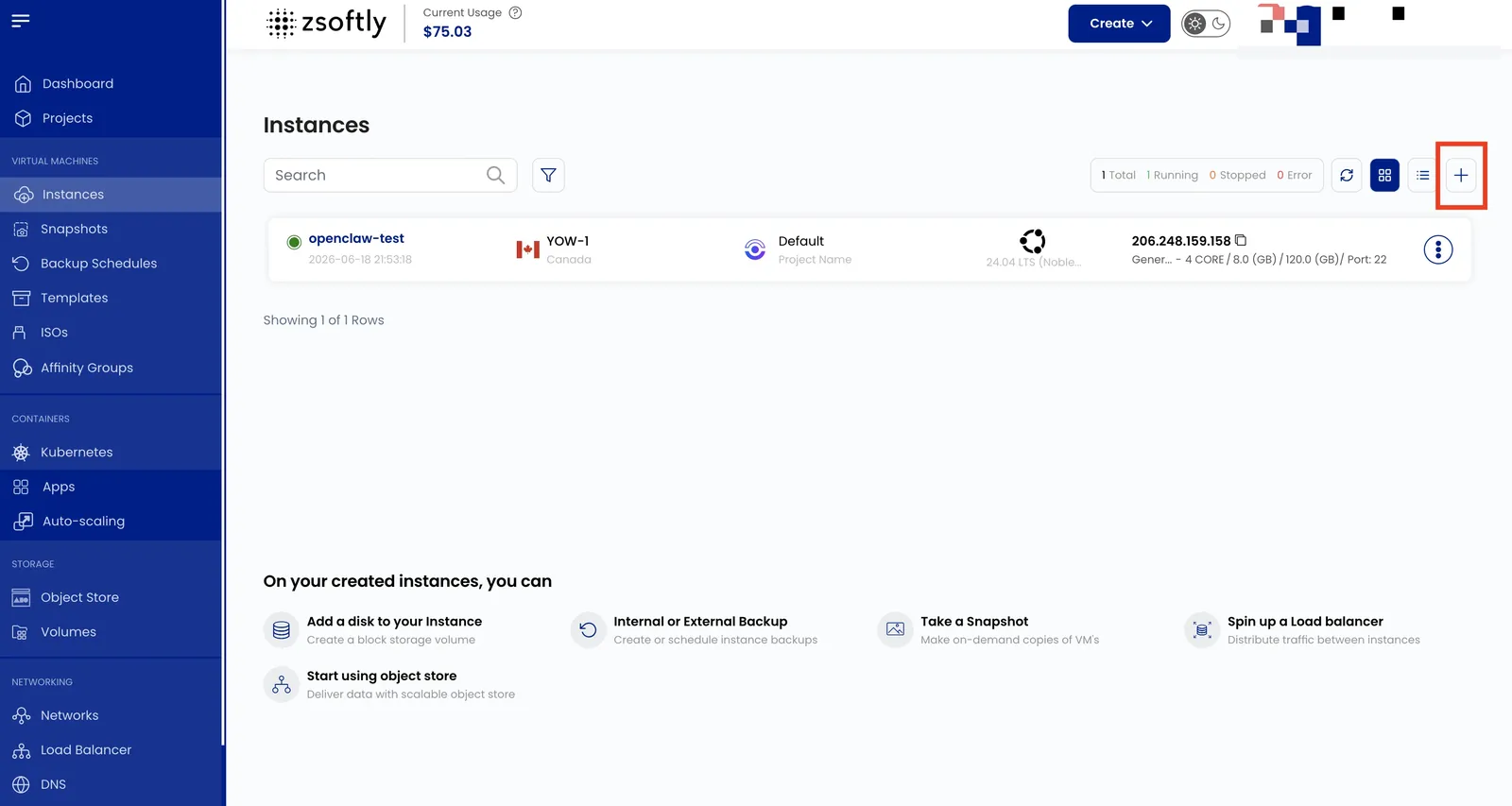
Section titled “Creating a Compute Instance”- From the left-hand menu, click on the Instances tab.
- To create an instance, click the plus (+) icon located on the right side of the page.
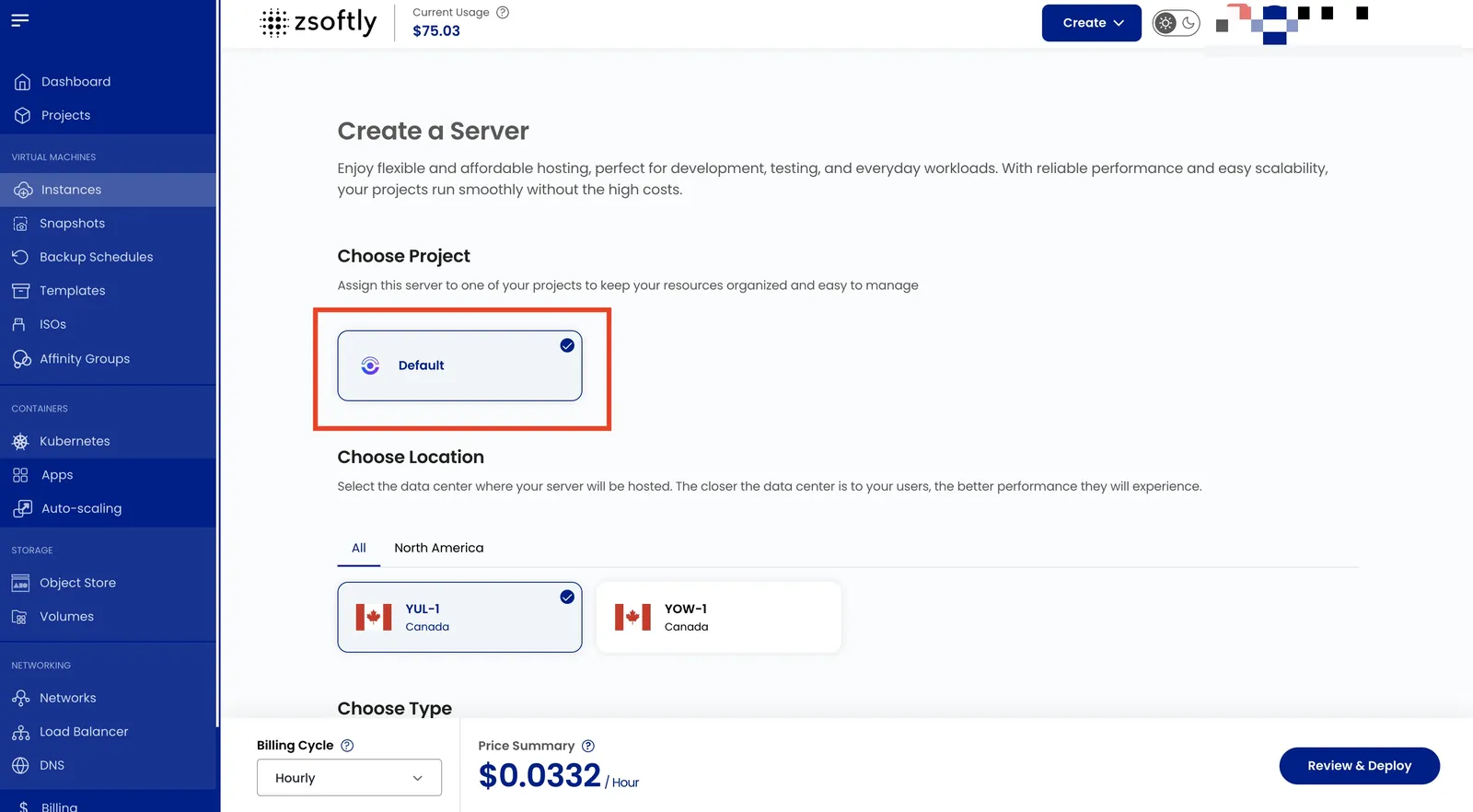
Assign to a Project
Section titled “Assign to a Project”Assign the server to one of your projects to organize resources.
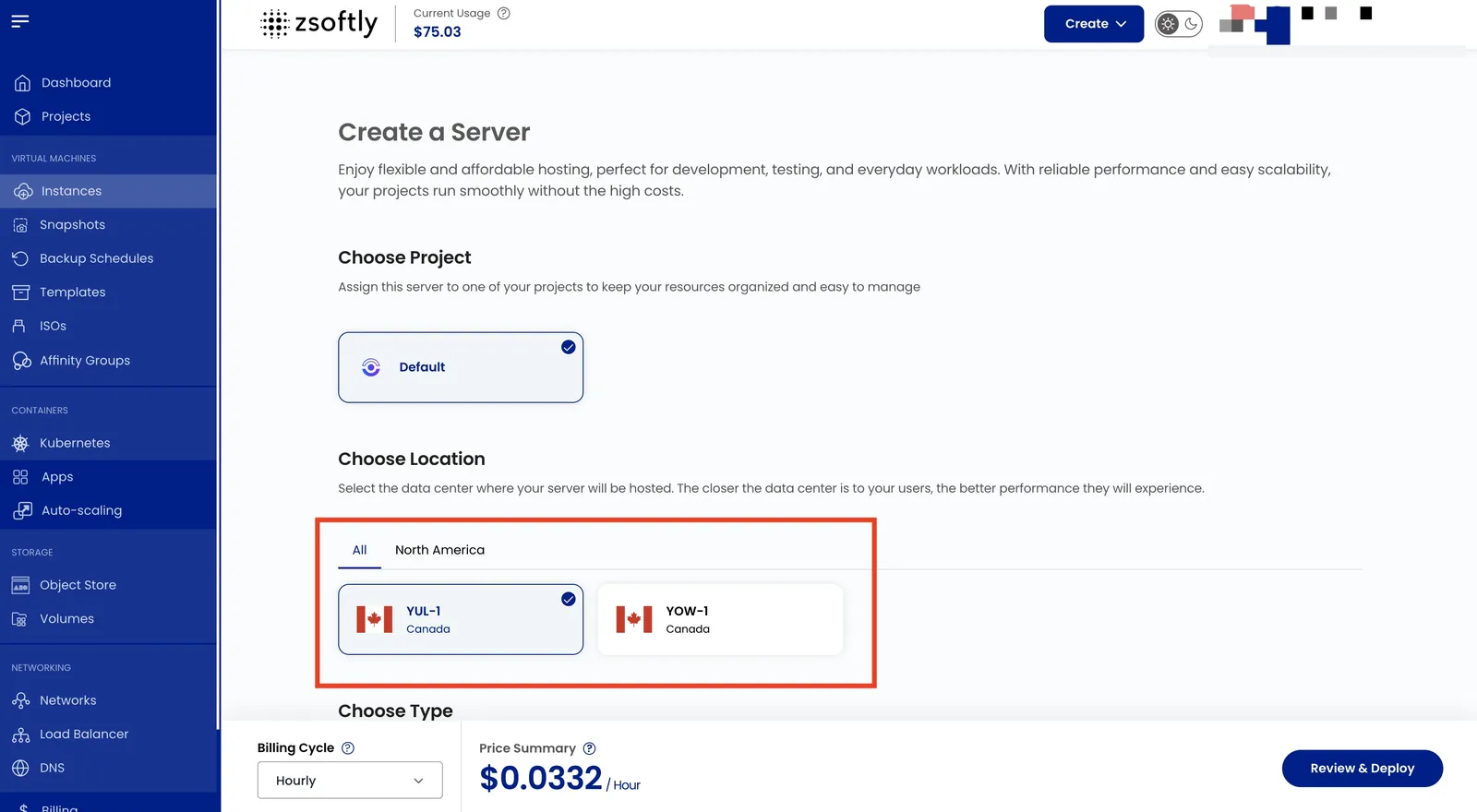
Choose a Location
Section titled “Choose a Location”Select the data center location where your server will be physically hosted.
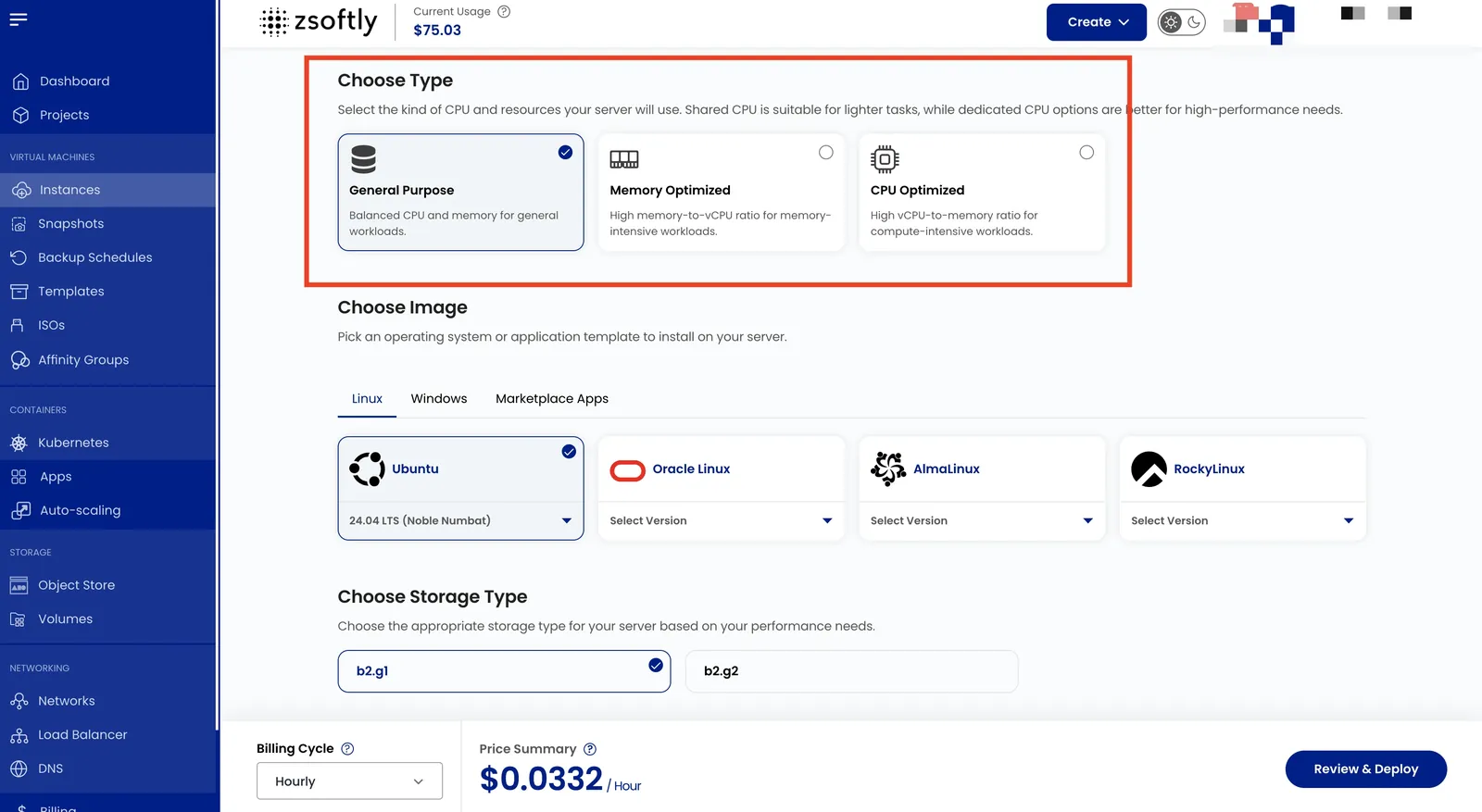
Choose the Type of CPU Allocation
Section titled “Choose the Type of CPU Allocation”- Shared CPU: Affordable, with resources shared among users. Ideal for development, testing, and low-performance workloads like small websites.
- Dedicated CPU: Provides exclusive resources for consistent performance. Perfect for production environments, high-traffic applications, and databases.
- High-Frequency Compute: Offers high clock speeds for compute-intensive tasks like simulations, financial modeling, and low-latency applications.
- Cloud GPU: Delivers GPU acceleration for demanding tasks like machine learning, AI, video rendering, and scientific simulations.
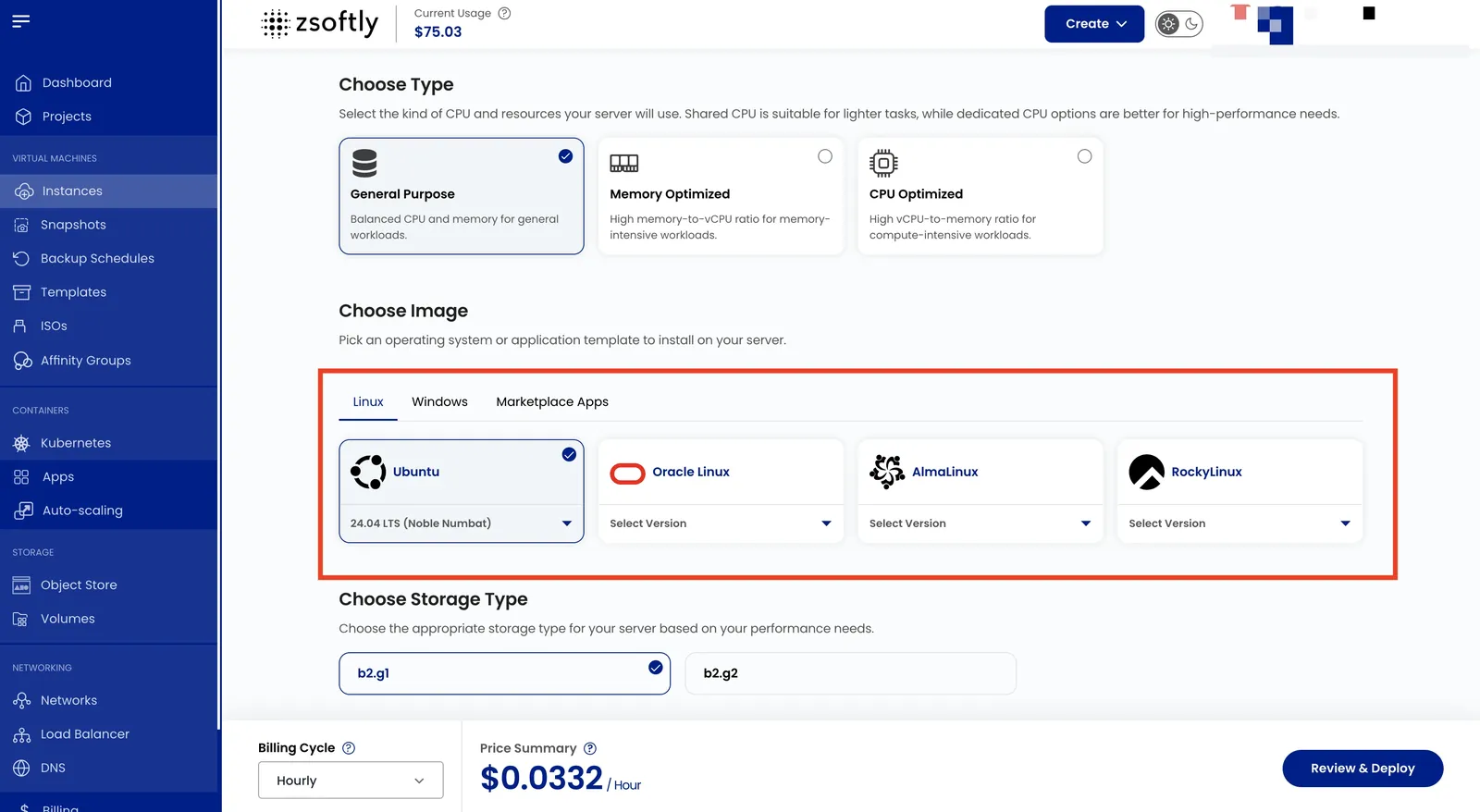
Choose an Image
Section titled “Choose an Image”Select an OS or application template. Import a custom ISO if needed.
Supported Windows images:
| Image | Status |
|---|---|
| Windows Server 2025 | Available |
| Windows Server 2022 | Available |
| Windows 11 Pro | Available |
Browse the full catalogs: OS Images and One-Click Apps.
Choose a Storage Type
Section titled “Choose a Storage Type”Choose the storage type for your instance based on your performance needs (for example, b2.g1 or
b2.g2).
Choose a Plan
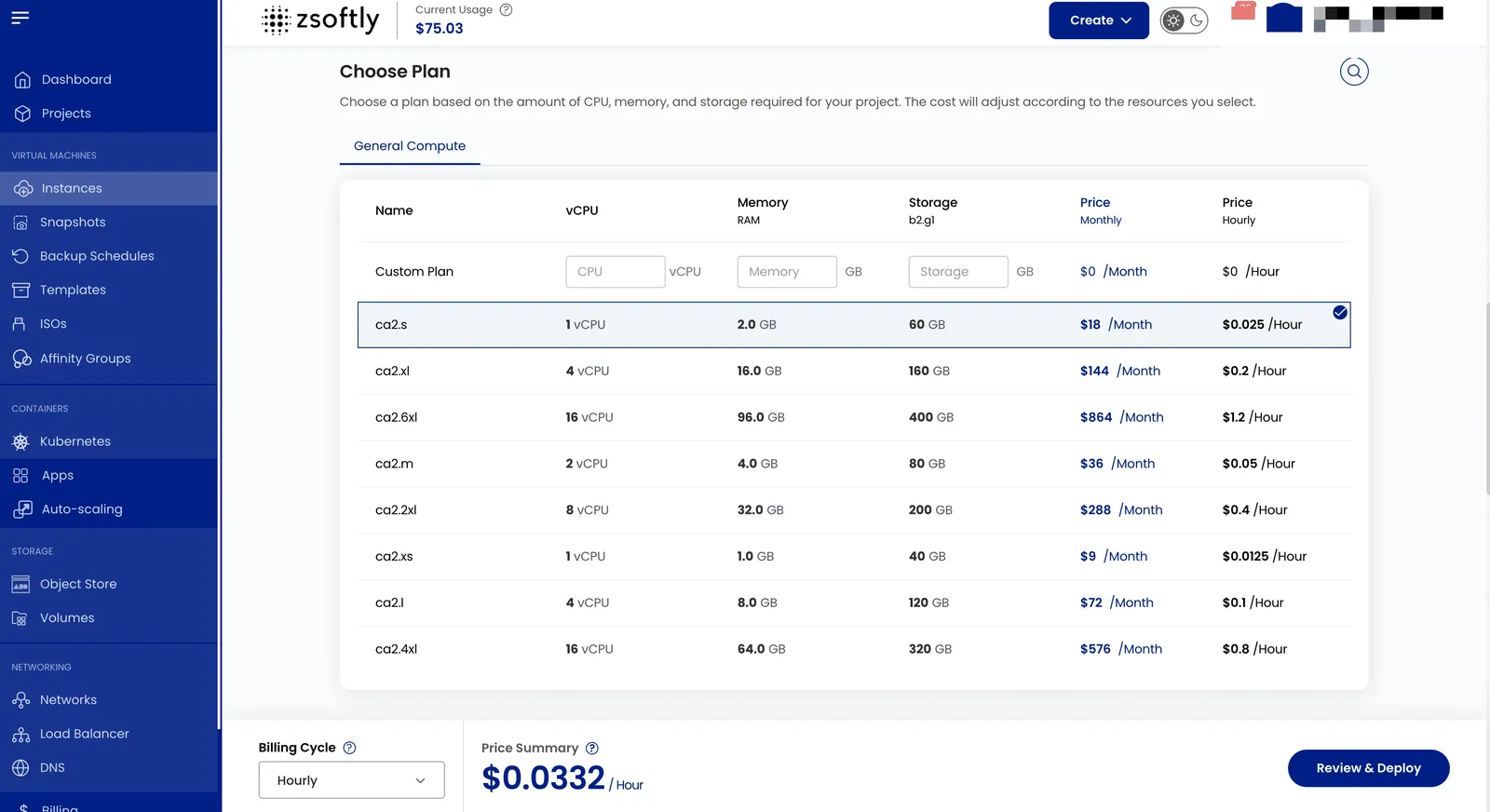
Section titled “Choose a Plan”- General Compute (GC): Balanced workloads with a mix of CPU, memory, storage, and bandwidth. Ideal for general-purpose applications, web servers, and testing environments.
- Compute Optimized (CO): Prioritizes CPU performance for compute-intensive tasks like batch processing, analytics, and high-speed processing workloads.
- Memory Optimized (RO): Tailored for applications requiring high memory capacity, such as in-memory databases, big data processing, and real-time caching systems.
See Instance Types for families and storage tiers, and the pricing page for per-size specs and pricing.
Choose a Network
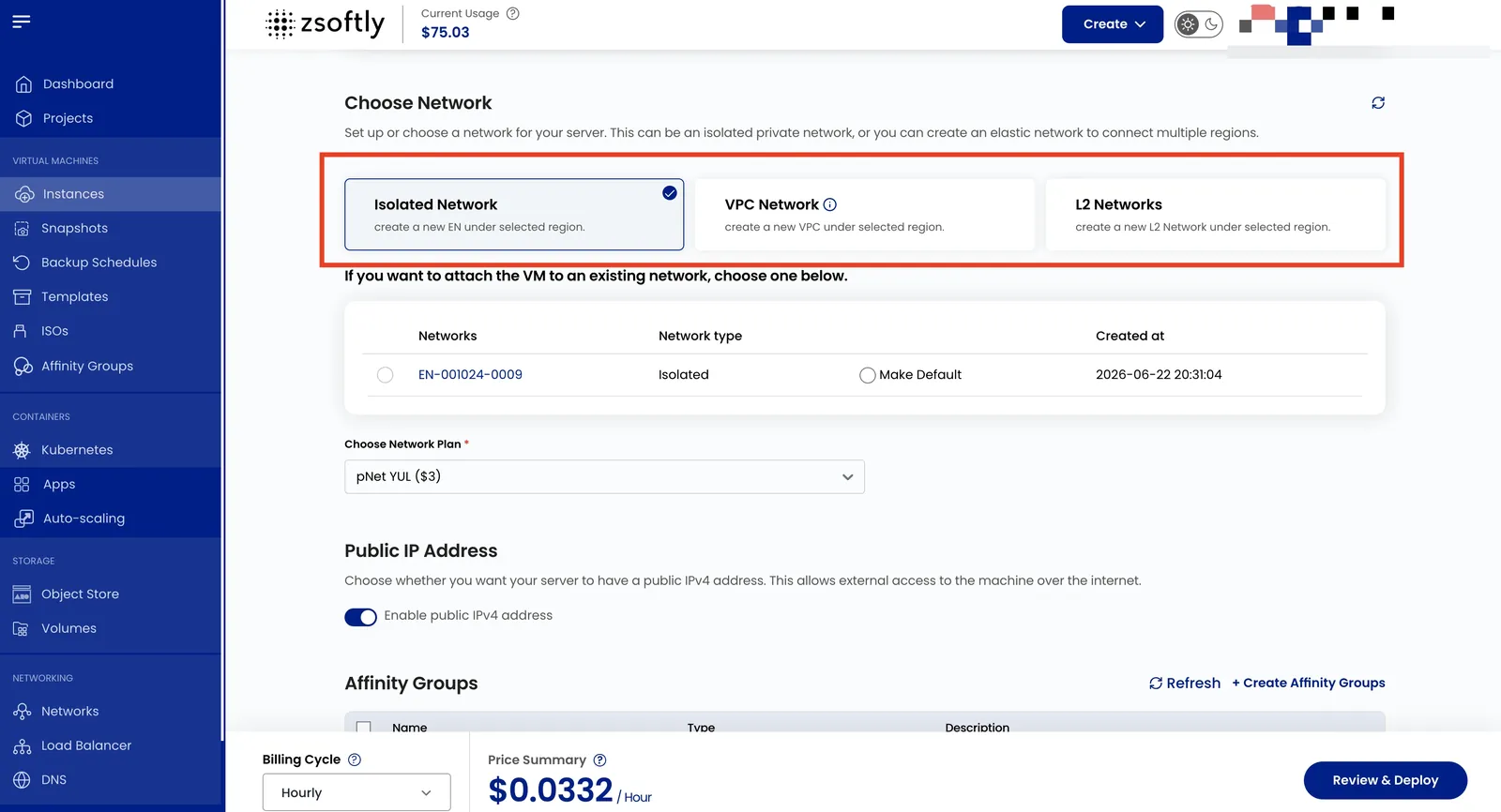
Section titled “Choose a Network”- Public Network: A simple, pre-configured network for external connectivity. Includes cloud firewall protection, port forwarding, and remote access VPN.
- VPC Network: A Virtual Private Cloud (VPC) offering complete control over traffic routing and enhanced security. Supports VPN gateway, site-to-site VPN connections, and traffic segregation.
Public IP
Section titled “Public IP”Choose whether to enable a public IPv4 address. Enable it if the instance needs to be reachable directly from the internet. You can also assign one later from the Public IPs page.
Affinity Groups
Section titled “Affinity Groups”Optionally place the instance in an affinity group to control how instances are distributed across physical hosts. See Affinity Groups.
Configure Server Settings
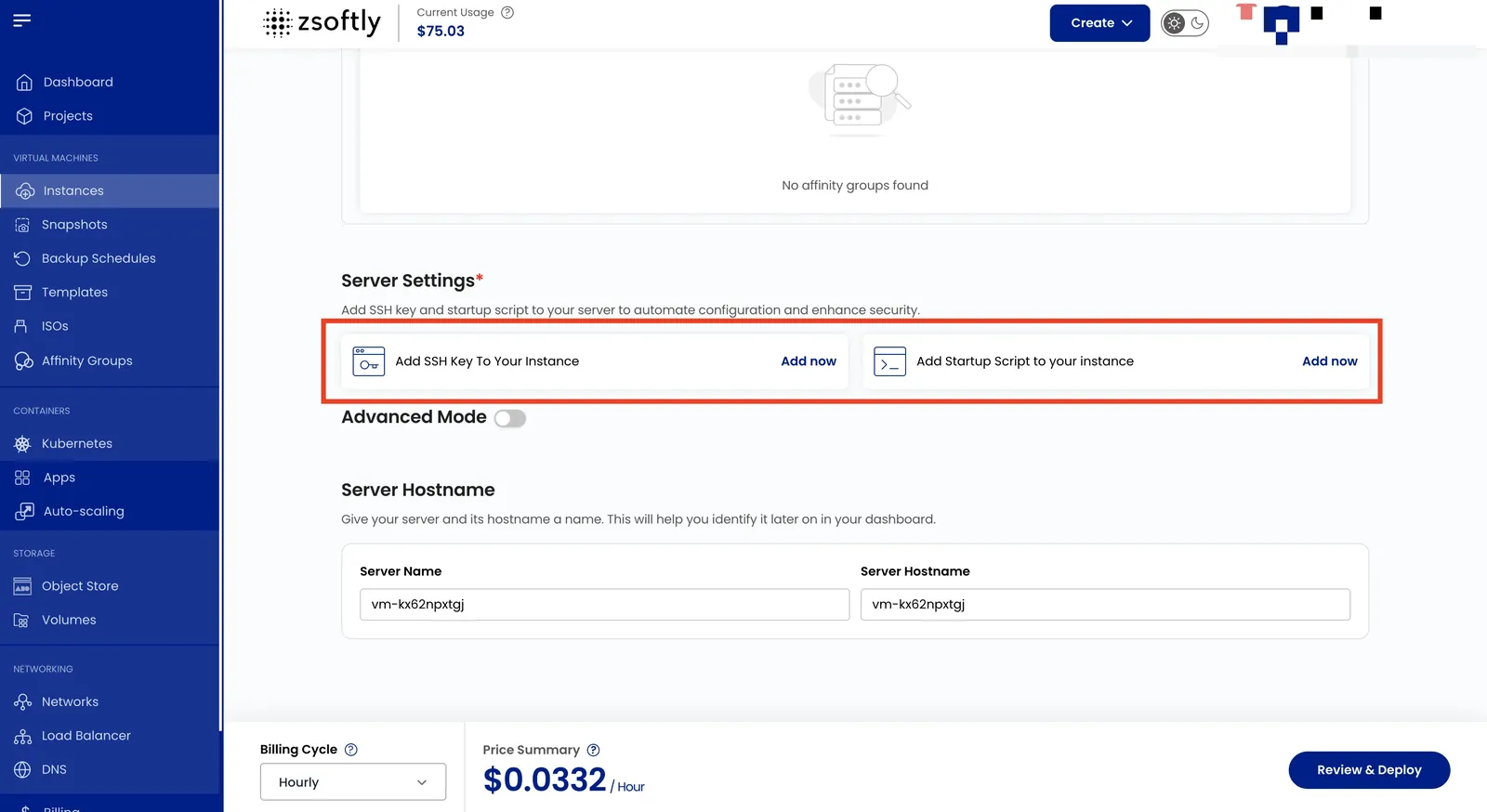
Section titled “Configure Server Settings”- Add SSH Key for secure access. Click Add Now. For some OS images (e.g., Arch Linux) an SSH key is required.
- Add a startup script to automate actions during initialization.
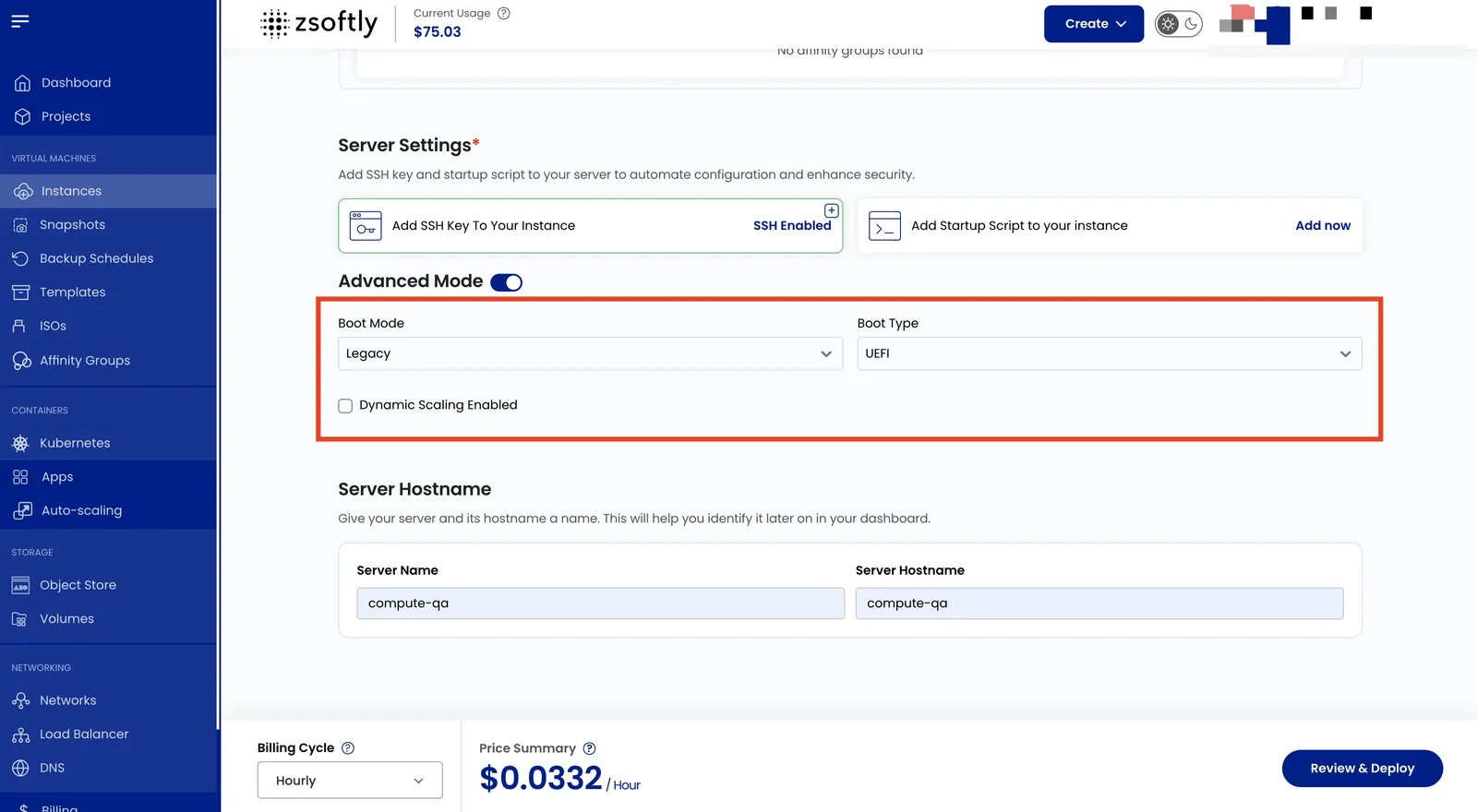
Advanced Settings (Optional)
Section titled “Advanced Settings (Optional)”- Boot Mode: Select Legacy or Secure boot.
- Boot Type: Choose between UEFI or BIOS.
- Enable Dynamic Scaling: Allows automatic resource scaling.
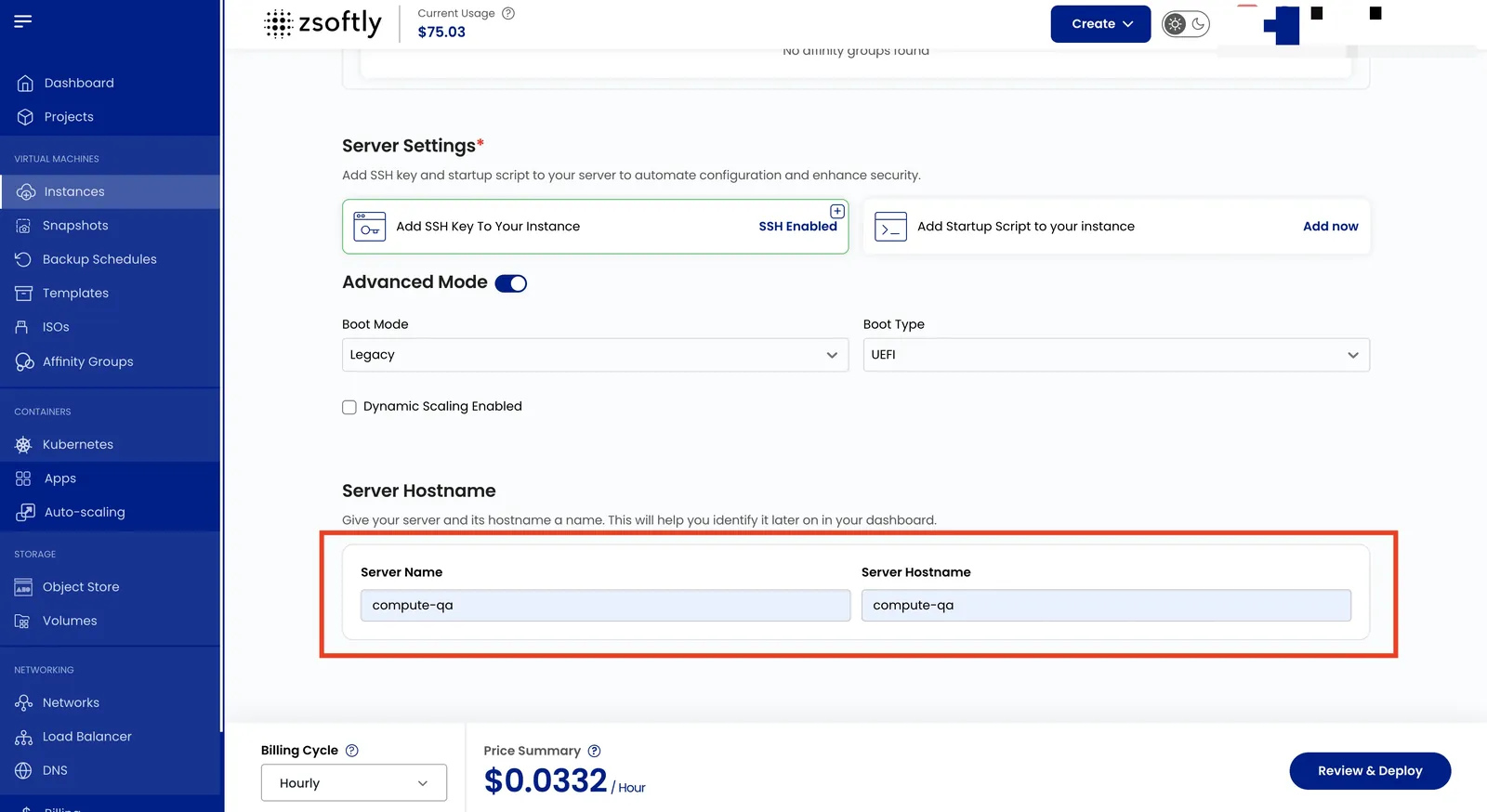
Server Hostname
Section titled “Server Hostname”Provide a unique Server Name and valid Server Hostname.
Review and Deploy
Section titled “Review and Deploy”- Choose the desired Billing Cycle: Hourly, Monthly, or Yearly.
- Verify all configuration details and click Review & Deploy.
Connect to your instance
Section titled “Connect to your instance”Once the instance is running, open Instance Overview to get its IP address, the default
username (depends on the OS image: ubuntu for Ubuntu, rocky for Rocky Linux, and so on; see
Connect With SSH), and, if you did not add an SSH key, the
Provisioning Password.
To reach it over SSH (port 22) from the internet, the instance needs a public IP and a rule that allows the traffic. This is not opened automatically:
Public Network
- Make sure the instance has a public IPv4 address; see Public IPs.
- Allow SSH: add a firewall rule for TCP 22, then a port-forwarding rule mapping port 22 on the public IP to port 22 on the instance.
VPC Network
- Assign a public IP and add a port-forwarding rule for port 22.
- Allow the traffic inbound in your Network ACL (TCP 22).
Then connect:
- SSH key: use the key you added under Configure Server Settings.
- Password: if you did not add a key, use the Provisioning Password from the instance’s Overview tab (see Connect With SSH); change it after your first login.
See Connect With SSH for the exact commands. No network rules are needed for Console Access (browser-based), and Windows instances use Connect With RDP.
See also
Section titled “See also”