
Console Access
Console Access opens a browser-based VNC session to your instance. Use it to reach the operating system without SSH or RDP. Watch the boot screen while you troubleshoot startup or network problems, or recover an instance after you lock yourself out.
Open the console
Section titled “Open the console”- Go to Compute → Instances and open your instance.
- On the Virtual Machine Overview, find the actions toolbar and click the console icon (marked 1 below).
The console opens in a new browser tab and connects automatically.
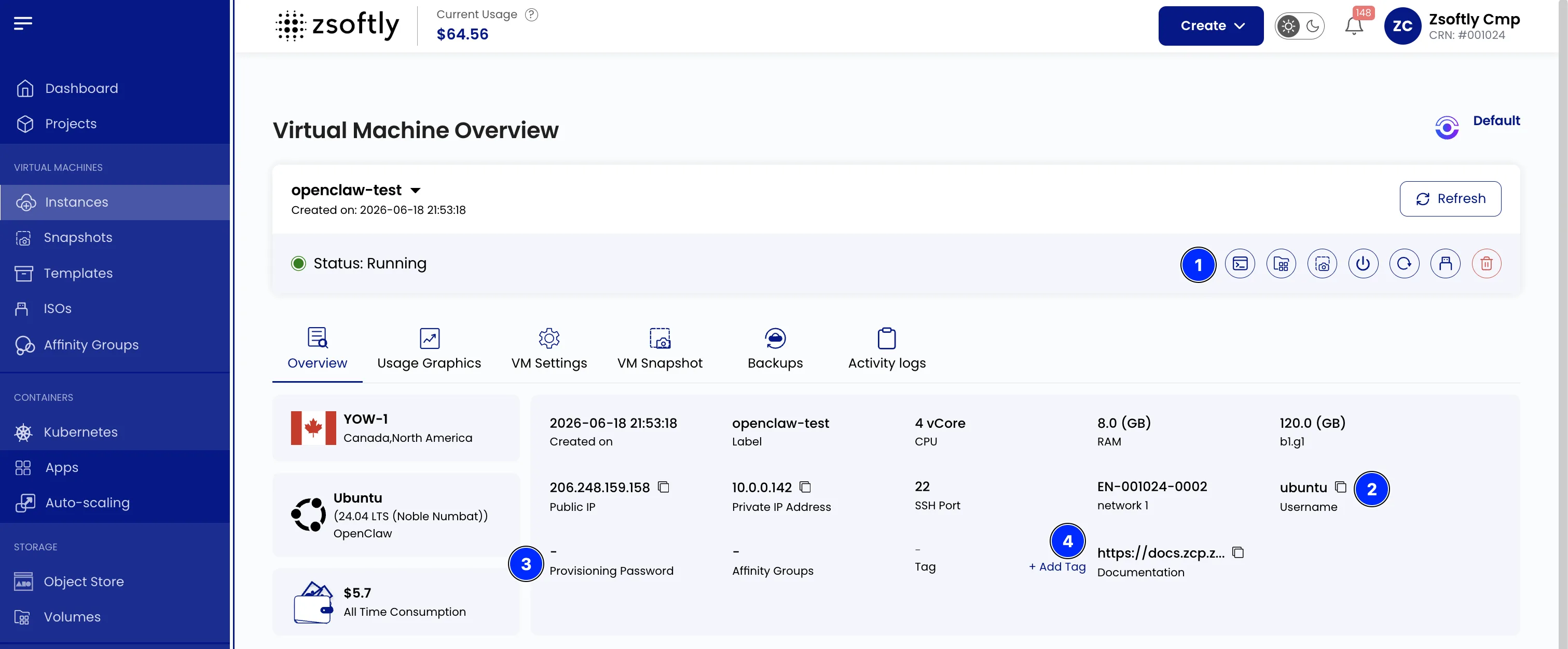
The same overview shows what you need to sign in:
- Username (marked 2): the default user for the image, for example
ubuntuon Ubuntu orAdministratoron Windows. Use the copy icon to copy it. - Provisioning Password (marked 3): the auto-generated password set on first boot. A dash means the instance was created with an SSH key and no password. Reset the password from the portal first, then sign in (the new password applies after the next reboot).
Sign in
Section titled “Sign in”Enter the username and password at the login prompt.
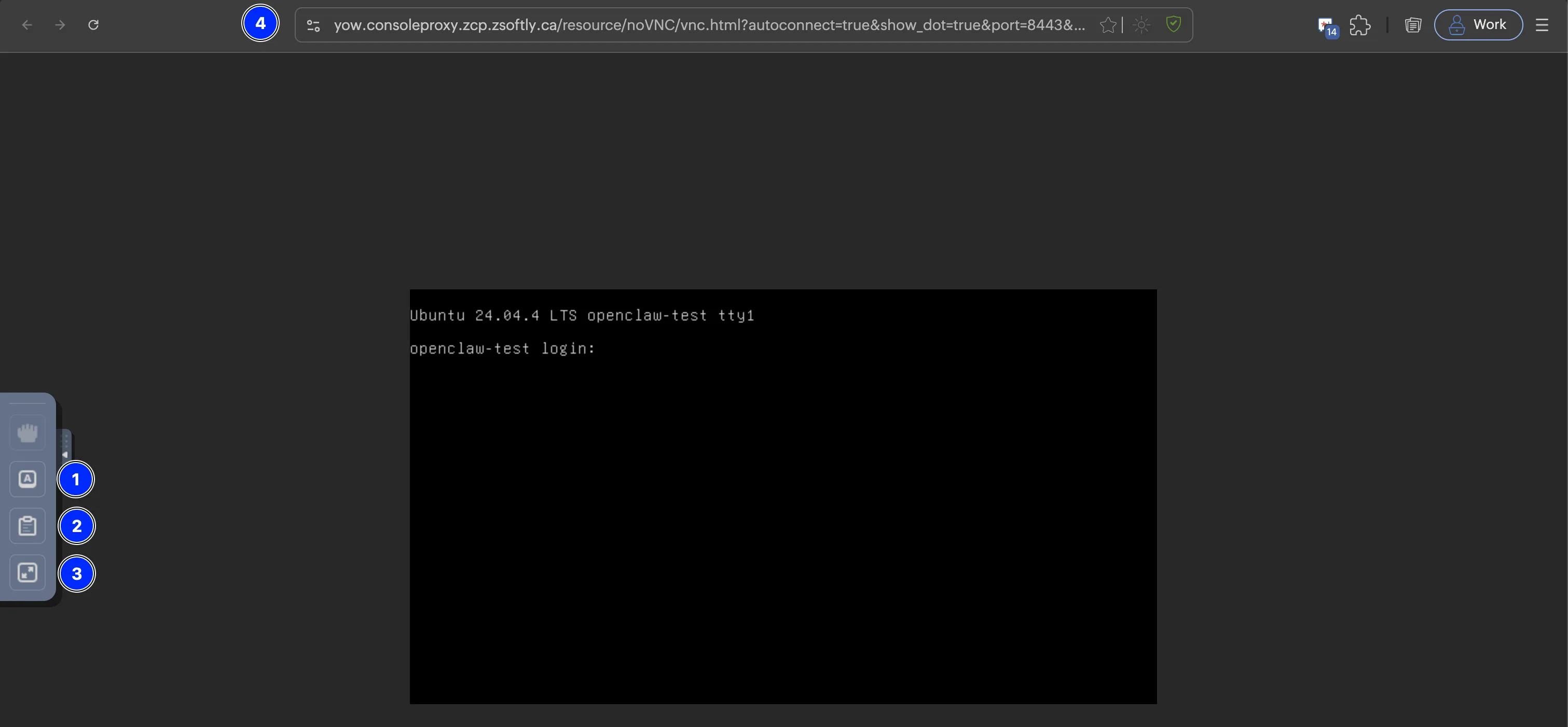
The address bar (marked 4) points at the regional console proxy, for example
yow.consoleproxy.zcp.zsoftly.ca.
Console toolbar
Section titled “Console toolbar”A small toolbar sits on the left edge of the console:
- Extra keys (marked 1): send keys the browser intercepts (see Keyboard shortcuts).
- Clipboard (marked 2): copy text between your machine and the instance.
- Full screen (marked 3): expand the console to fill your screen.
Keyboard shortcuts
Section titled “Keyboard shortcuts”The Extra keys button opens these inputs:
- Toggle Control (Ctrl): Simulates pressing the Control key.
- Toggle Alt: Simulates pressing the Alt key.
- Toggle Shift: Simulates pressing the Shift key.
- Toggle Windows Key: Simulates the Windows key.
- Send Tab: Sends a Tab key input.
- Send Escape (Esc): Sends an Escape key input.
- Send Ctrl+Alt+Delete: Sends the Ctrl+Alt+Delete combination.
- Clipboard: Copies text between the local machine and the VM.
- Full-Screen Mode: Expands the VM console to full-screen.
When to use the console
Section titled “When to use the console”- Reach an instance before SSH or RDP is configured or reachable.
- Fix a broken network, firewall, or SSH setting that blocks remote access.
- Read kernel or login messages while the instance boots.
- Recover access after a lost key or password (reset the password from the portal first).