Create Volume
Block Storage Volumes
Section titled “Block Storage Volumes”Block storage volumes provide local NVMe SSD, local SATA SSD, or replicated shared storage that attaches to virtual machines, depending on the selected region and plan. Once attached, format and mount the volume to extend your VM’s storage.
Create a Block Storage Volume
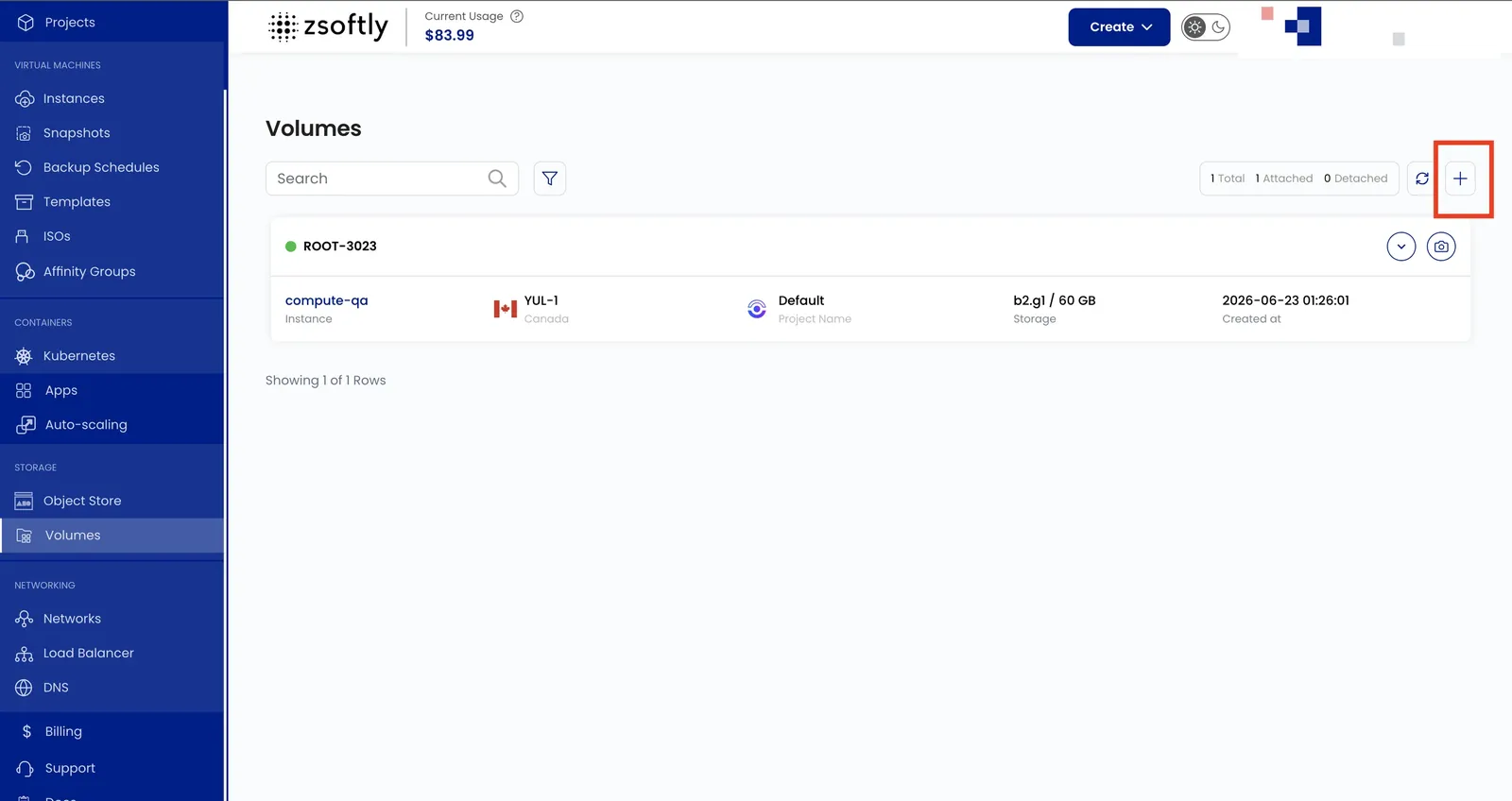
Section titled “Create a Block Storage Volume”- From the left-hand menu, click Block Storages.
- Click Create Block Storage or the + icon.
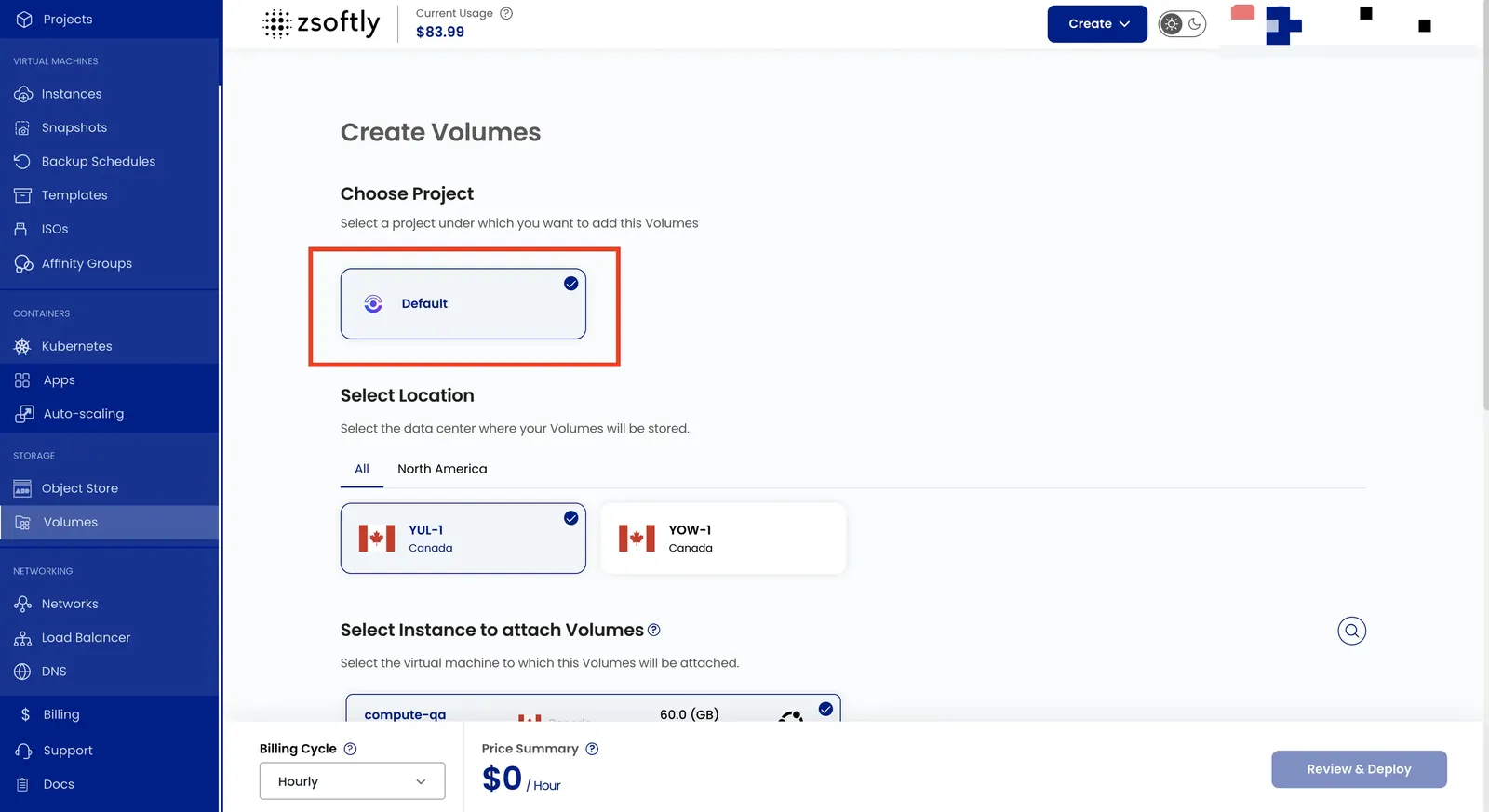
Assign to a Project
Section titled “Assign to a Project”Assign the volume to a project.
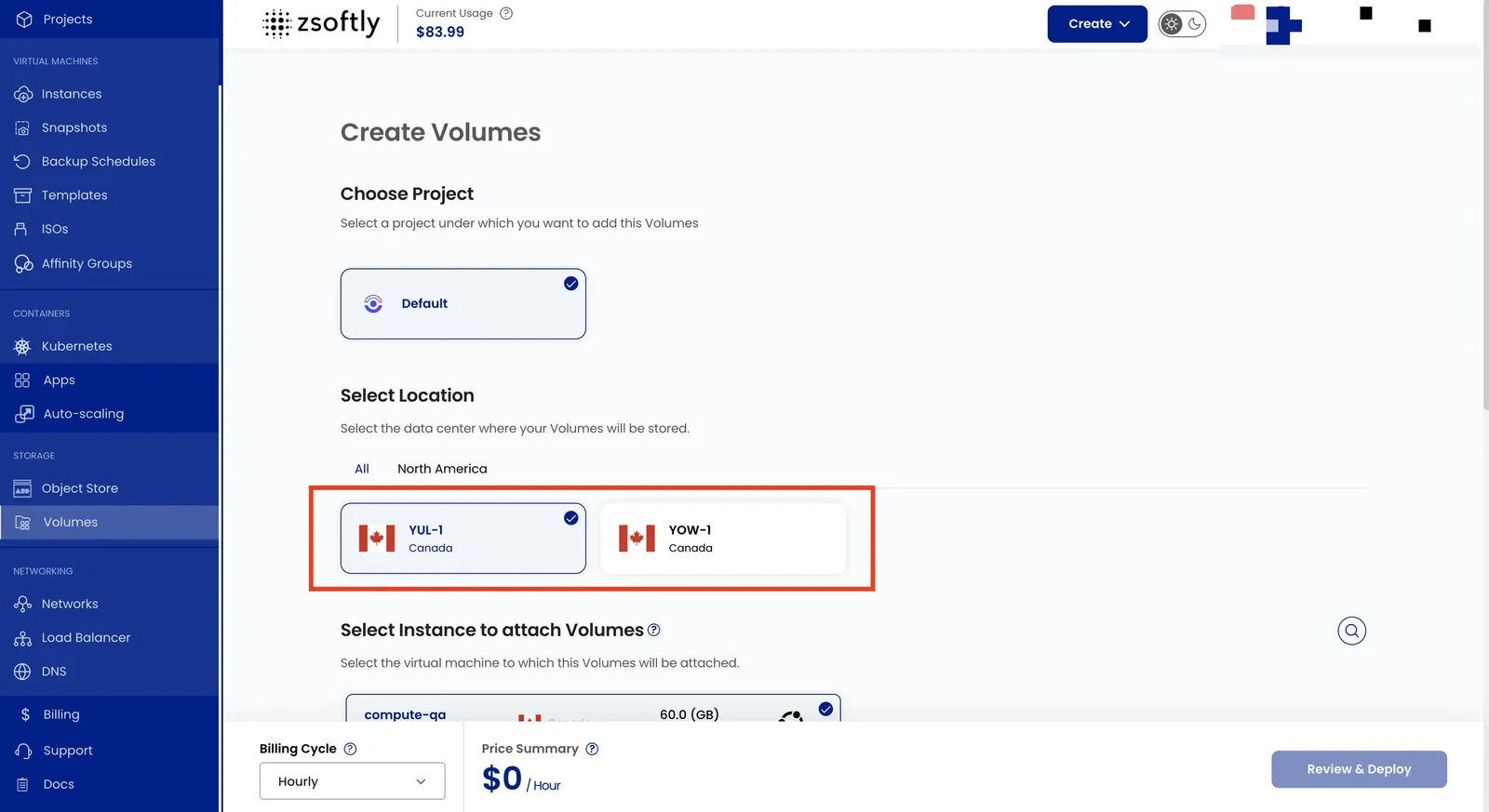
Choose a Location
Section titled “Choose a Location”Select the data center location.
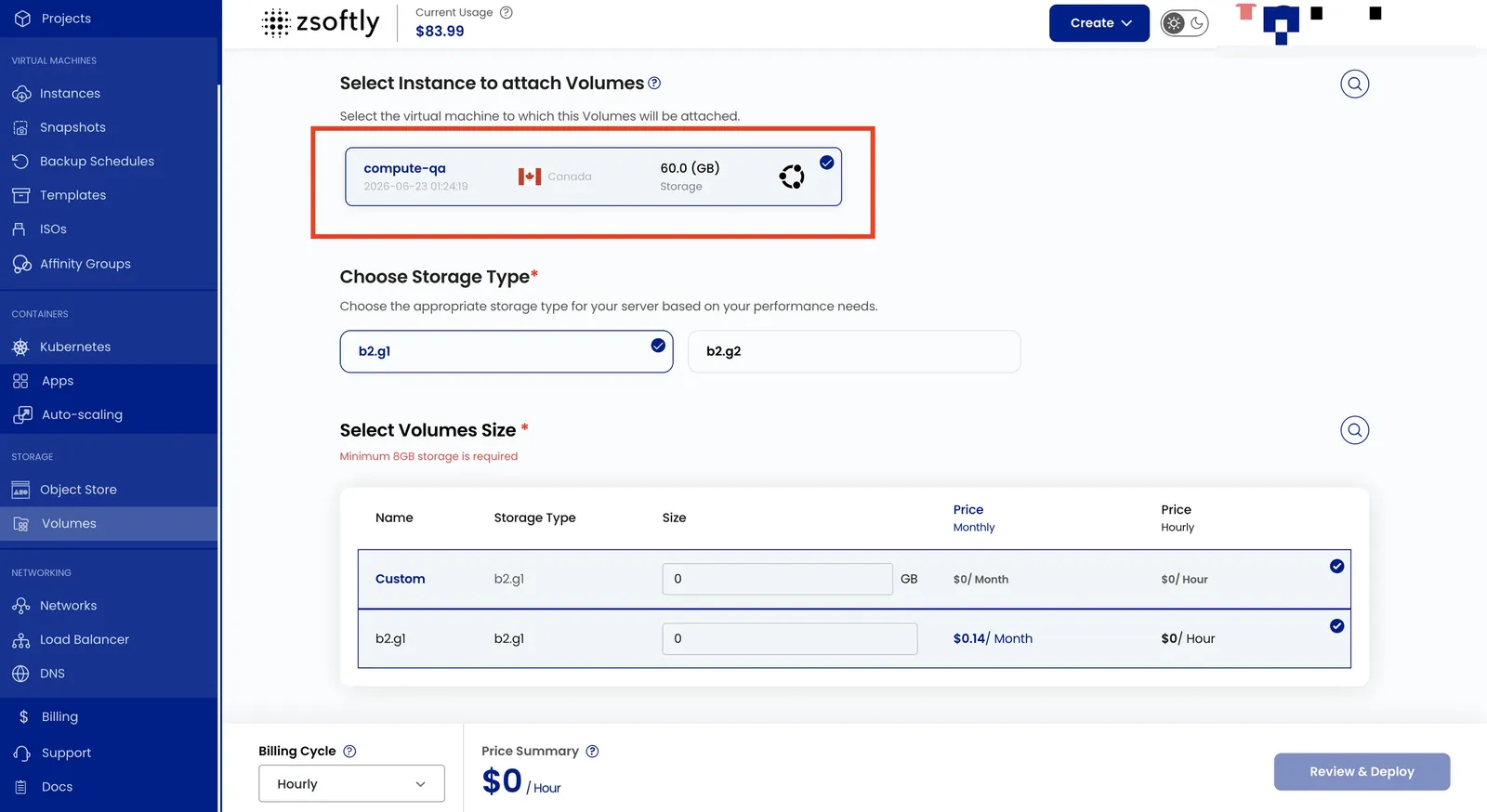
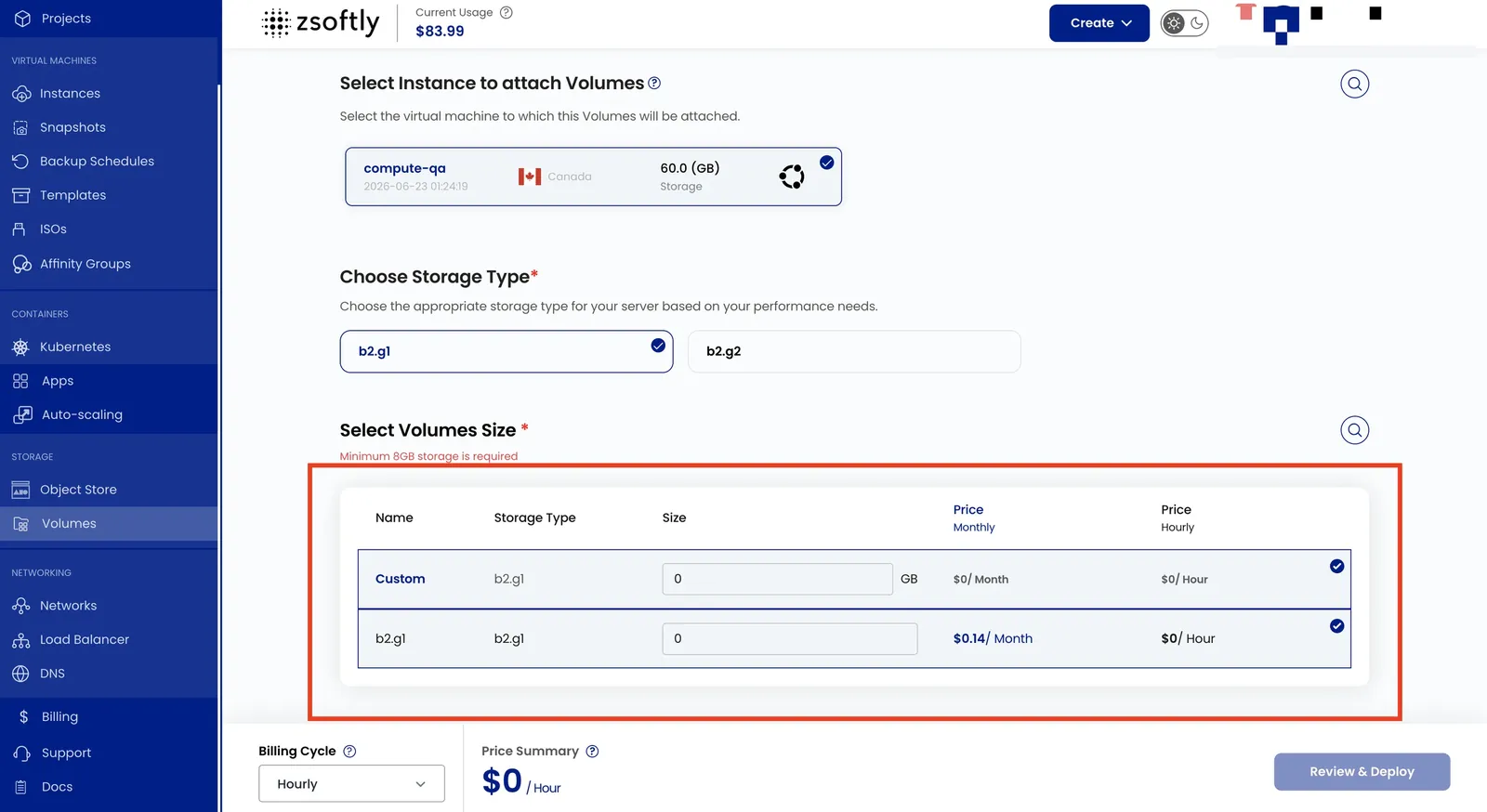
Choose Instance
Section titled “Choose Instance”Select the VM instance to attach this volume to.
Select Volume Size
Section titled “Select Volume Size”Select storage type and size. Custom volumes are available.
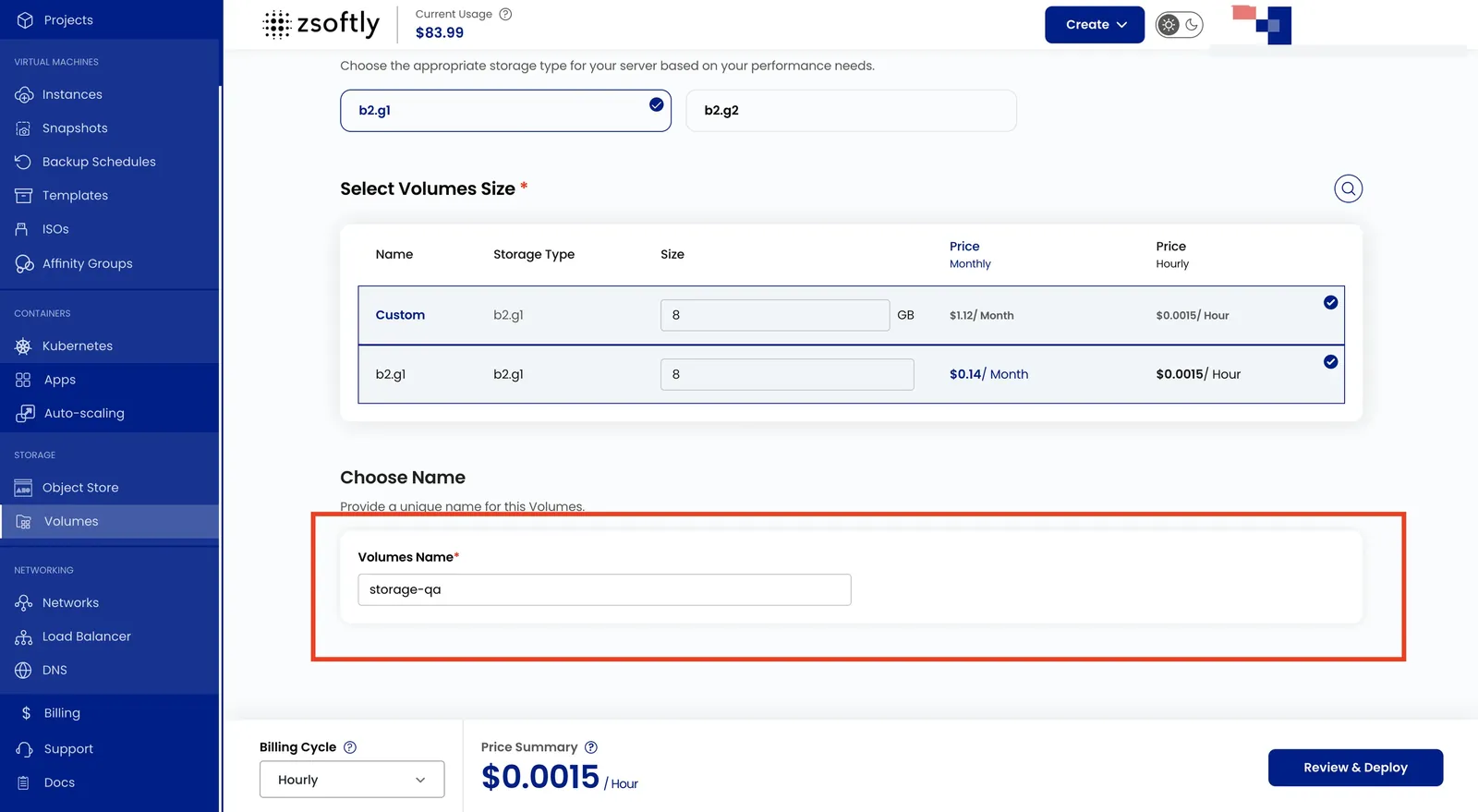
Provide a unique Volume Name.
Create
Section titled “Create”- Billing Cycles: Hourly, Monthly, or Yearly.
- Review and click Create Volume.
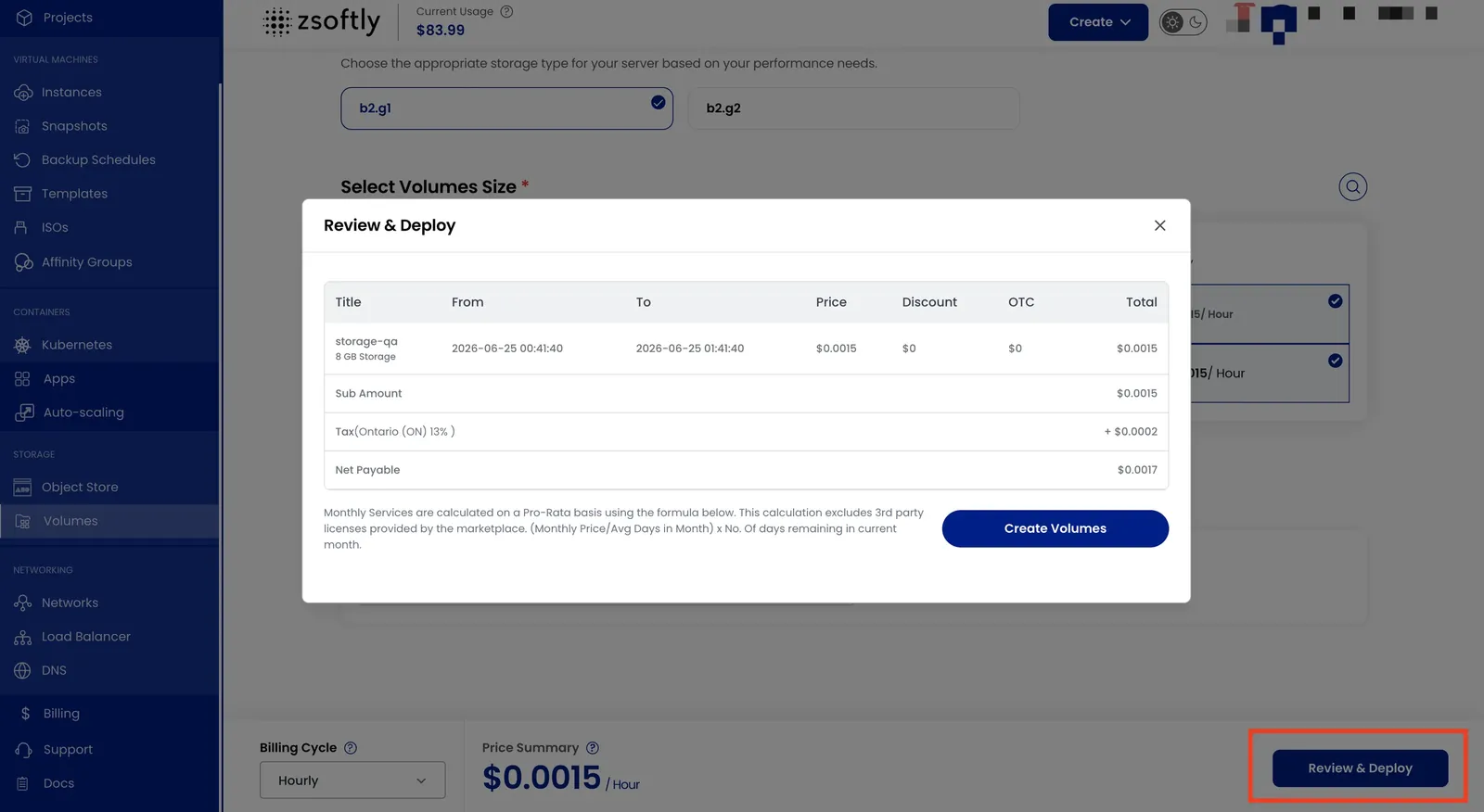
After creation, format and mount the volume inside the VM:
# Find the new disk (usually /dev/vdb)lsblk
# Formatsudo mkfs.ext4 /dev/vdb
# Mountsudo mkdir -p /datasudo mount /dev/vdb /data
# Persist across rebootsecho '/dev/vdb /data ext4 defaults 0 2' | sudo tee -a /etc/fstab
See also: Storage Types and Resilience, Volume Snapshots, VM Snapshots